

FlixnetIPTV setup guide: Fire TV, Samsung, LG, Google TV, Apple devices and computers
Choose your device below and follow the screenshots, one step at a time. Most viewers have live TV and the movie library running in five to ten minutes. Stuck somewhere? Send a screenshot on WhatsApp and we guide you – on many smart TVs we can even add the list for you remotely.
- Instructions with screenshots
- Xtream Codes or M3U
- Remote help
Samsung and LG: watch directly on the TV, no extra device
Players that work: IBO Player, SET IPTV, HotPlayer, and on Samsung also IPTV Smarters Pro.
Install a player from the store
On Samsung the store is under Apps, on LG it is called the LG Content Store. Search for one of the players listed above and install it.
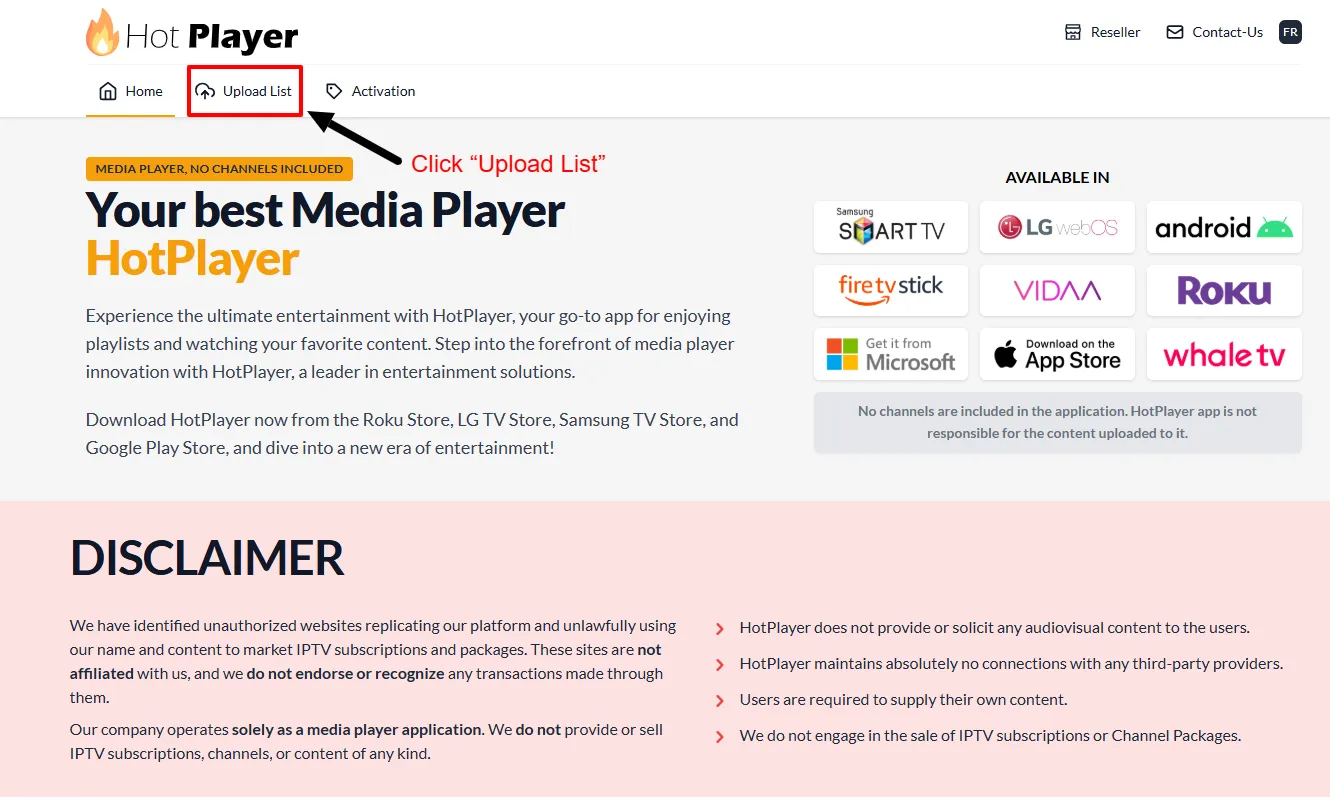
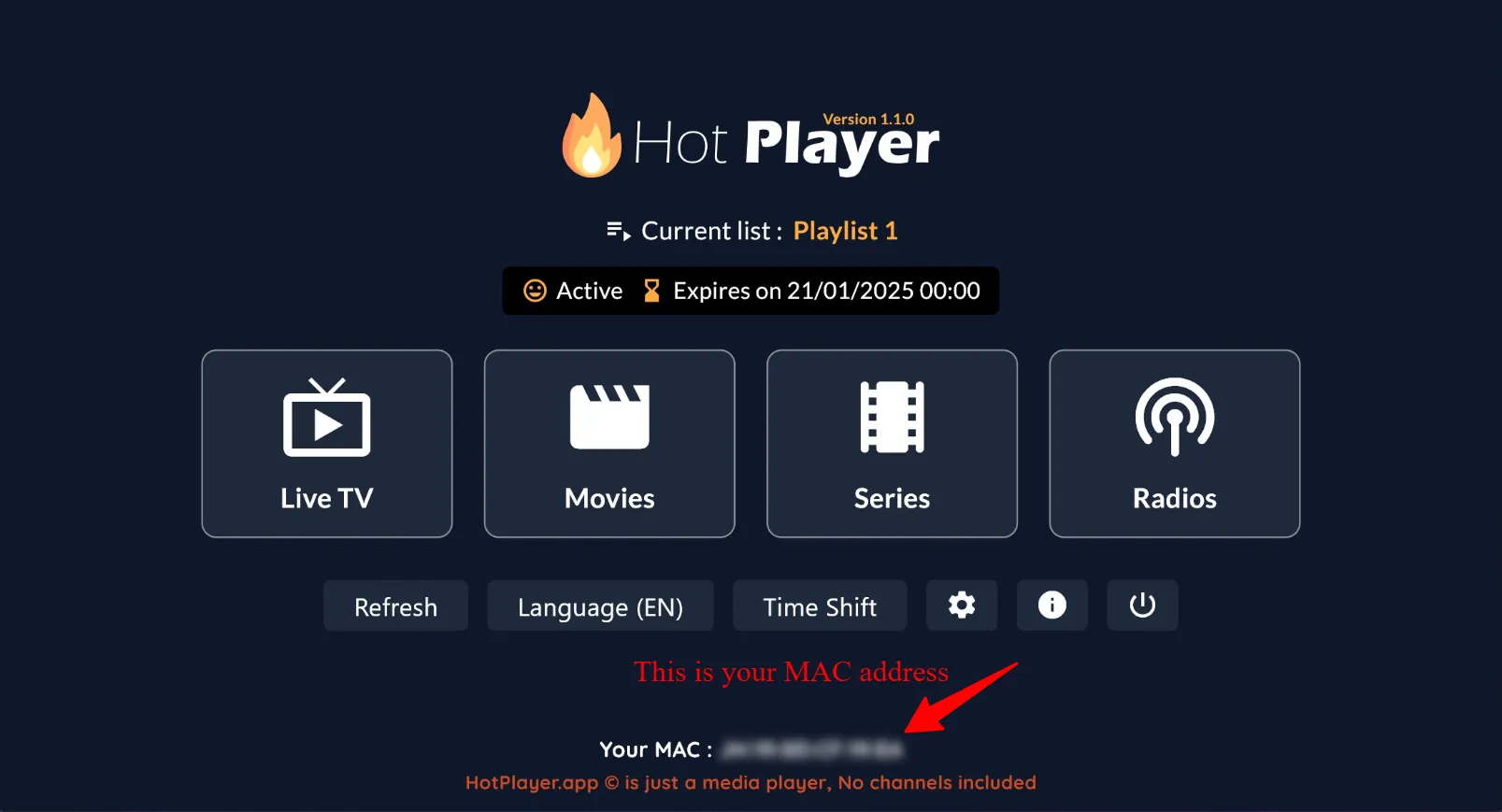
Write down the MAC address
On first launch the player shows the TV's MAC address and often a device key too. Take a photo of the screen with your phone so you have the details saved.
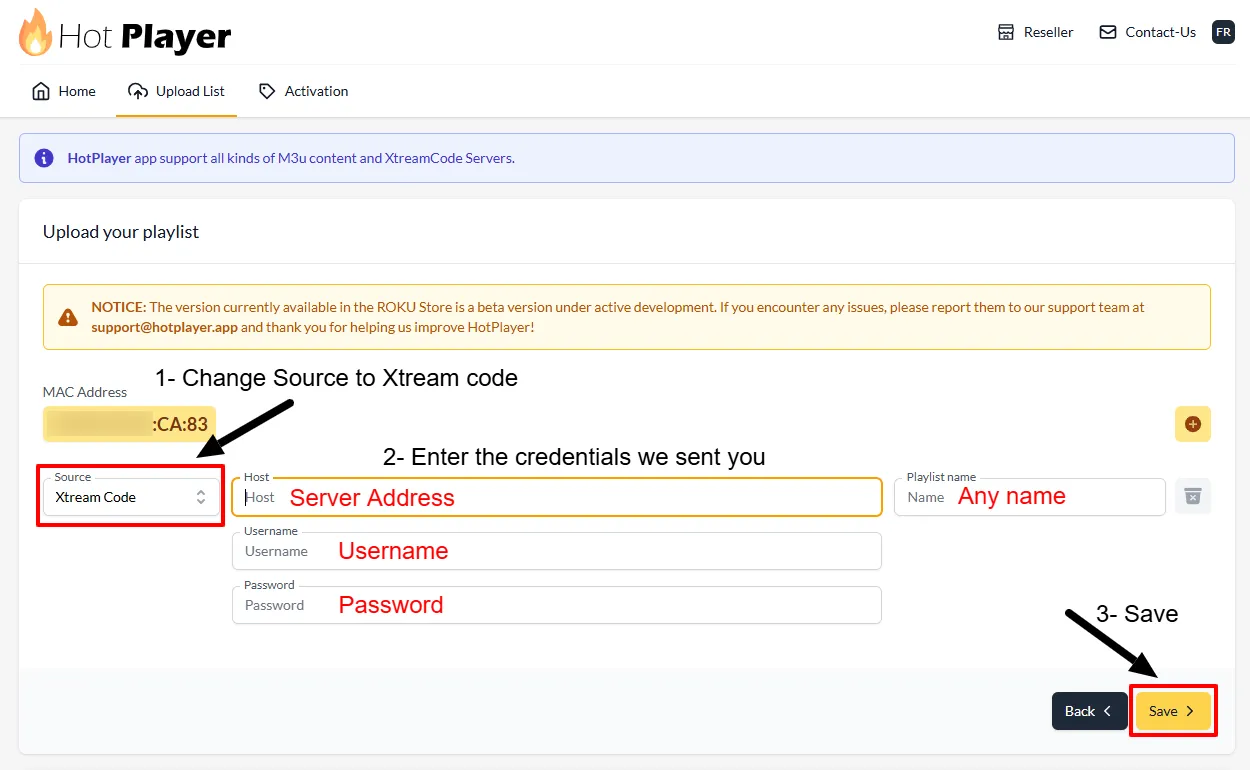
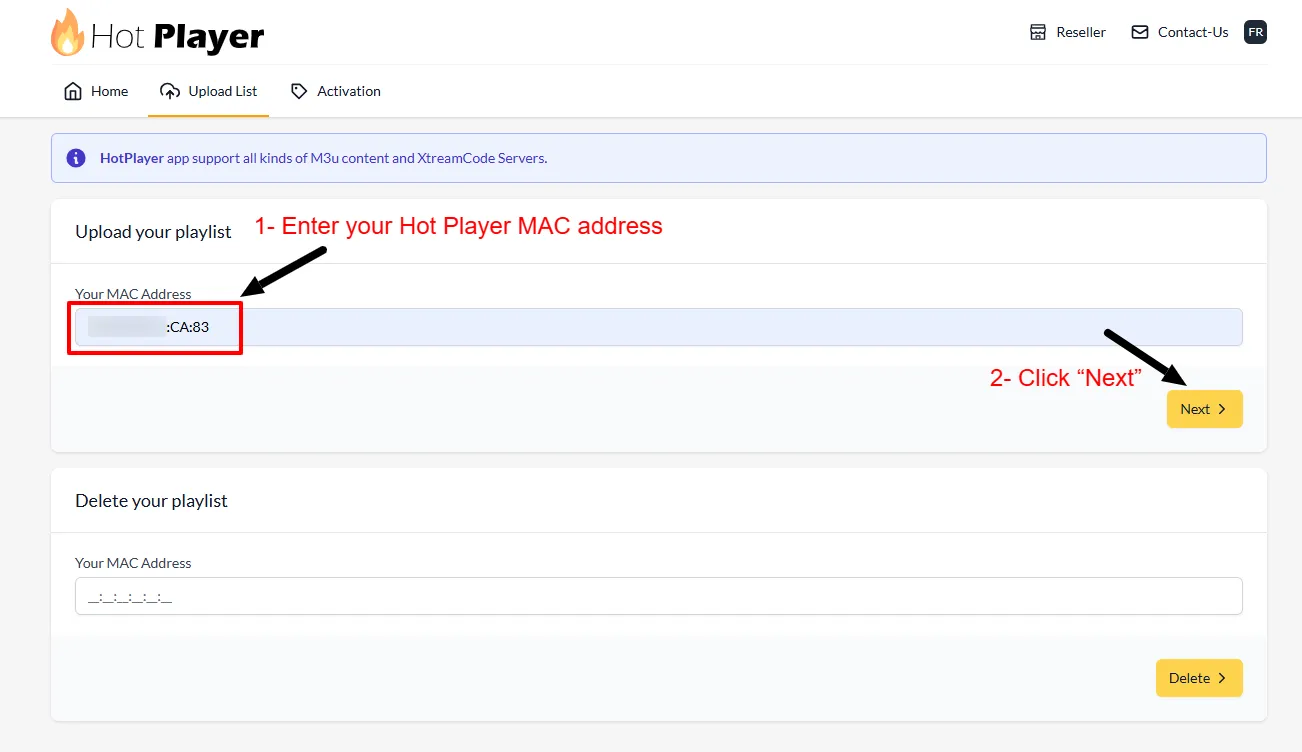
Add the list on the player website
In a browser on your phone or computer, open the player's website, log in with the MAC address and key, and paste the M3U link from your order message. Then restart the player on the TV.
FlixnetIPTV on Chromecast and Android TV: TiviMate straight from Google Play
Chromecast with Google TV, Sony, TCL, Hisense, Philips, Nvidia Shield and other Android TV boxes.
Open the app store
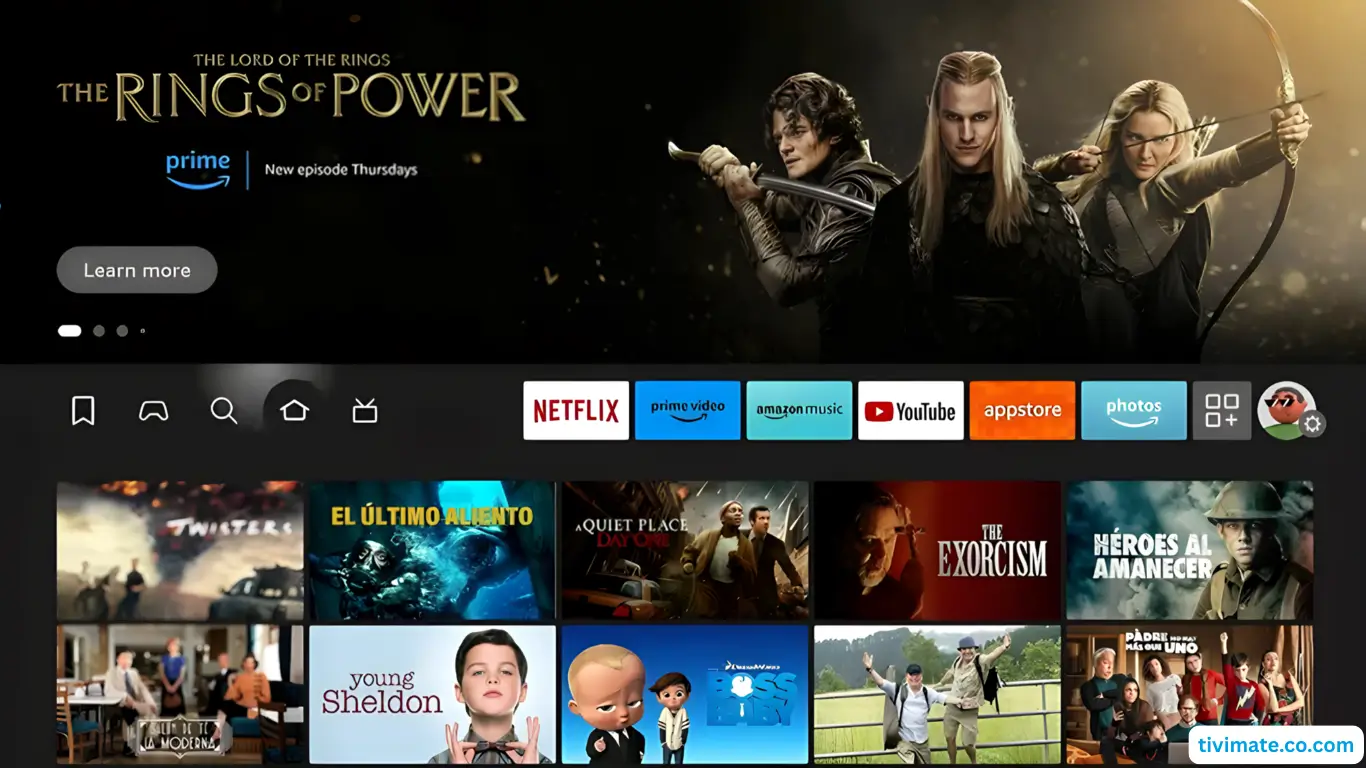
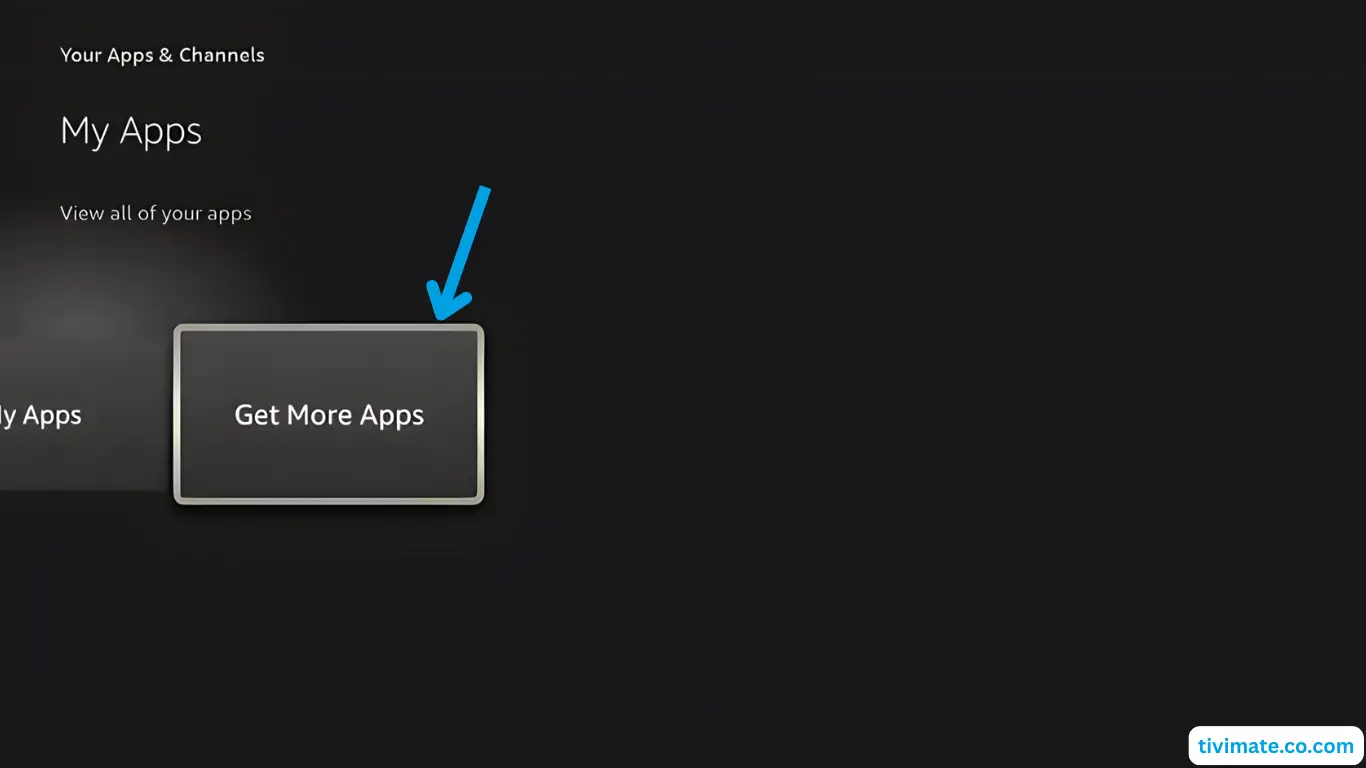
Press Home on the remote to go back to the start screen and open the Google Play Store (on Google TV, the Apps tab).
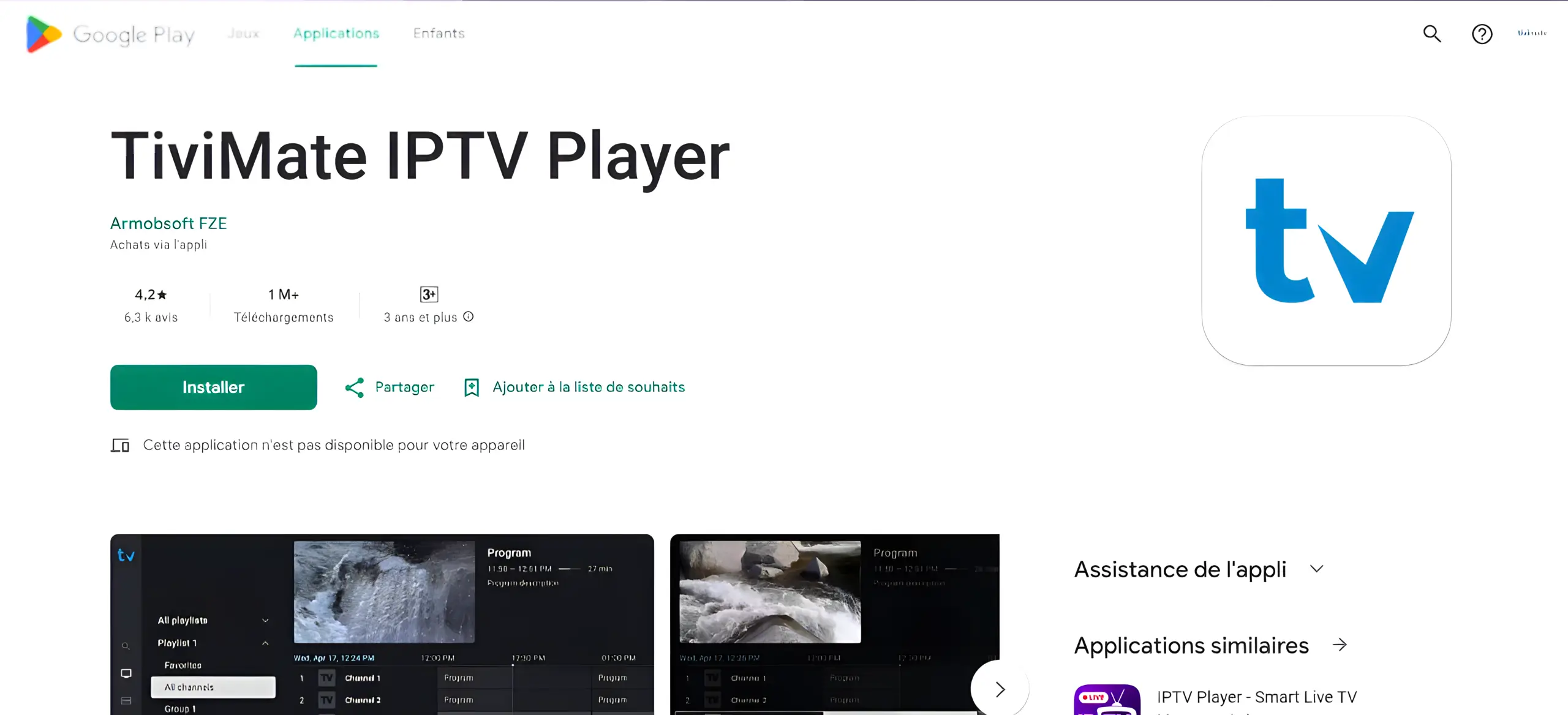
Search for TiviMate
Type TiviMate in the search bar. Its TV guide shows channels and shows in a grid like a classic cable box, so it feels familiar from day one.
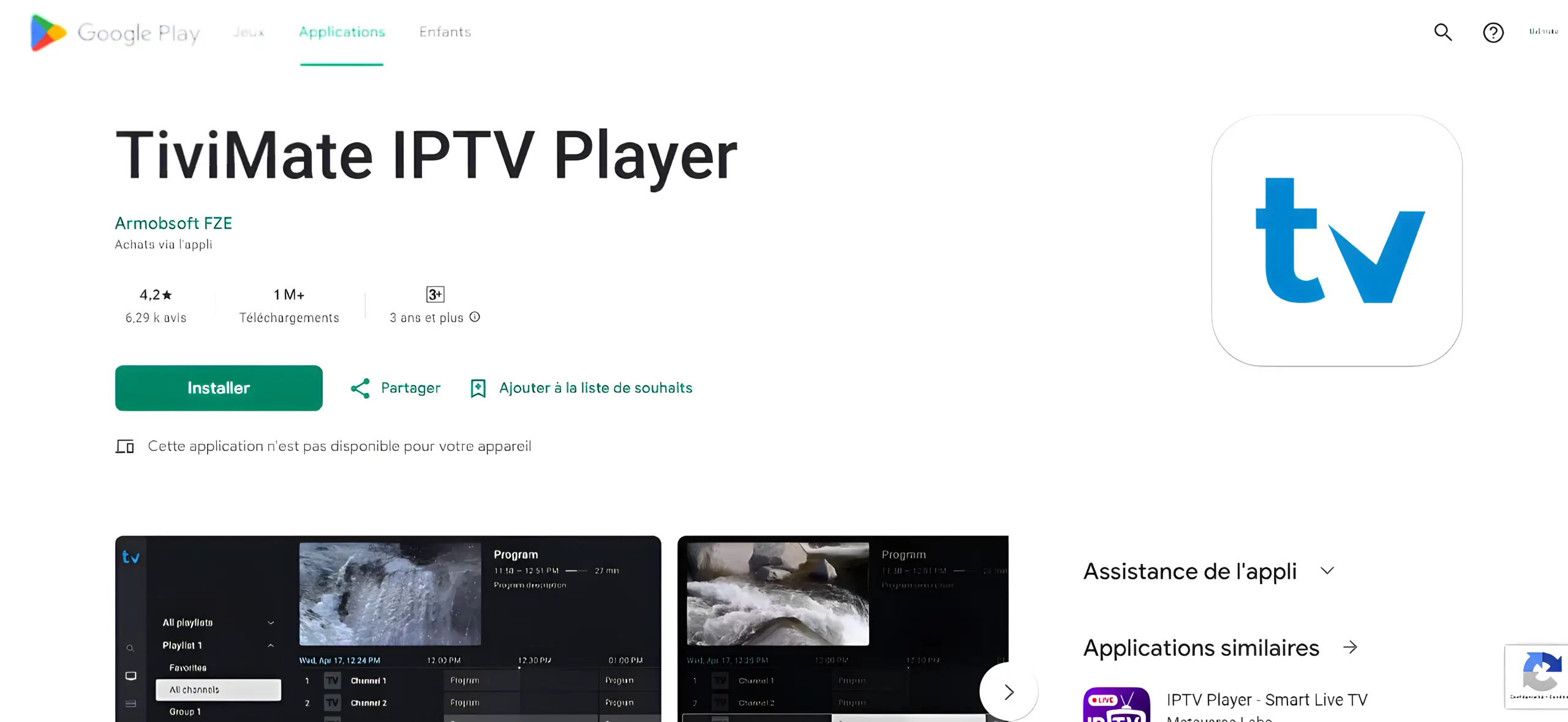
Install and launch
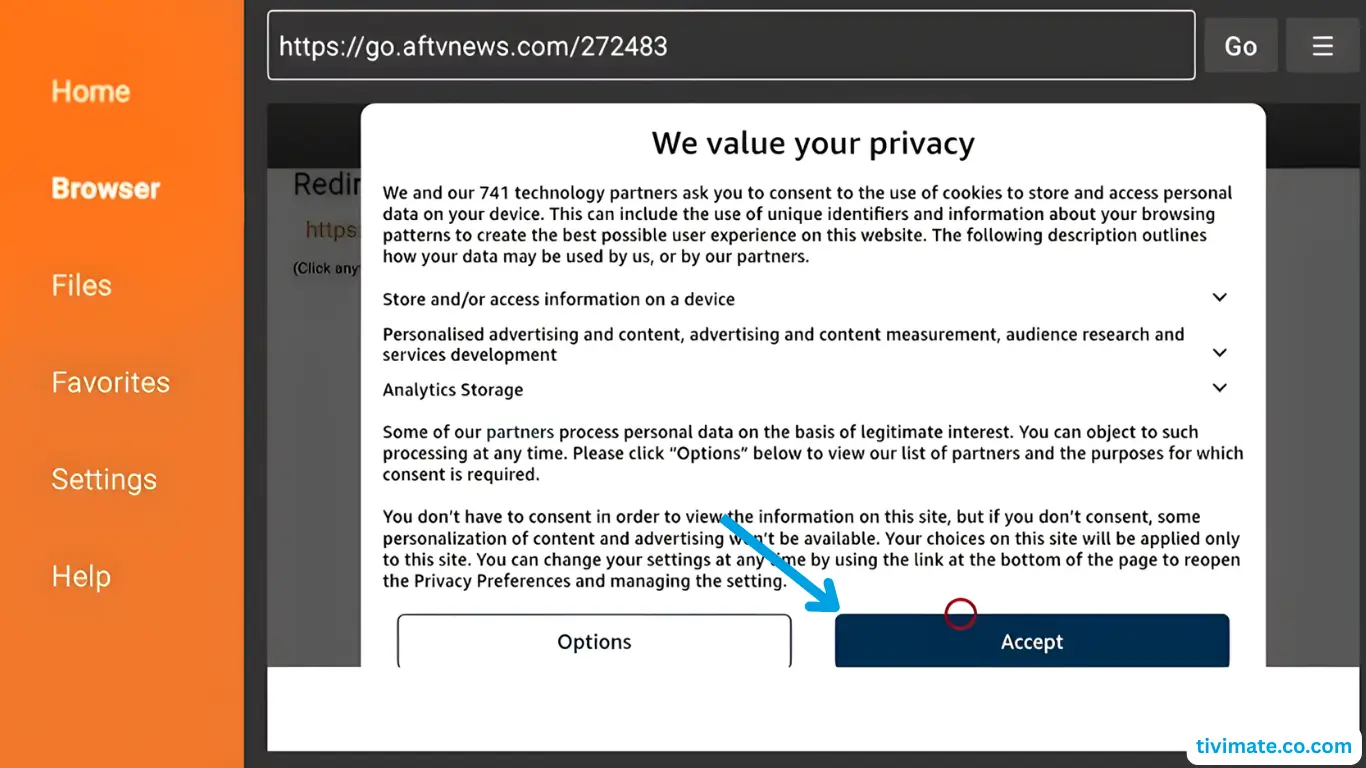
When the installation is finished, open TiviMate and accept its privacy terms.
Add a playlist
Choose Add playlist and then Xtream Codes. Enter the server, username and password. Channels and the guide load automatically.
Fire TV Stick and Cube: install the player with the Downloader app
We recommend TiviMate; IPTV Smarters Pro is another option. The whole process takes about ten minutes.
Find Downloader
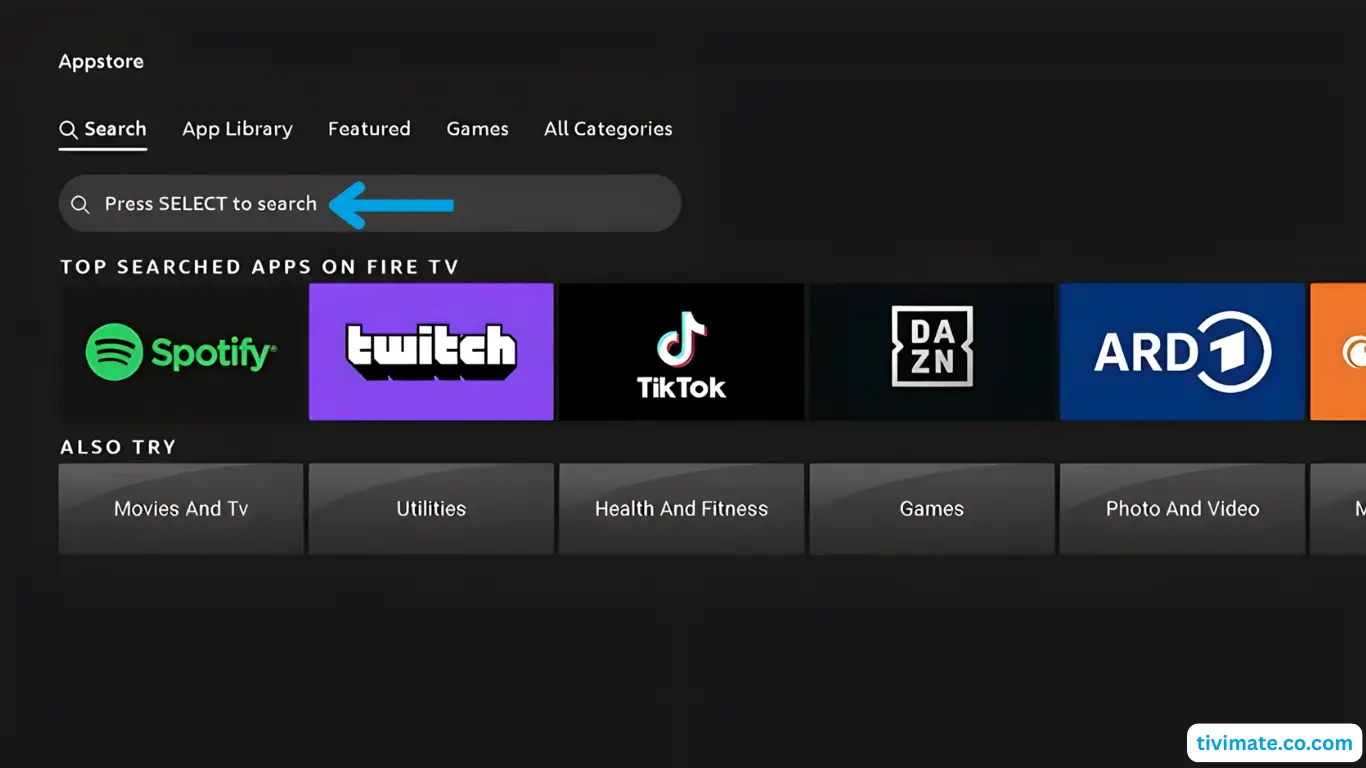
On the Fire TV home screen open search, type Downloader and open the page of the app with the orange icon.
Download the app
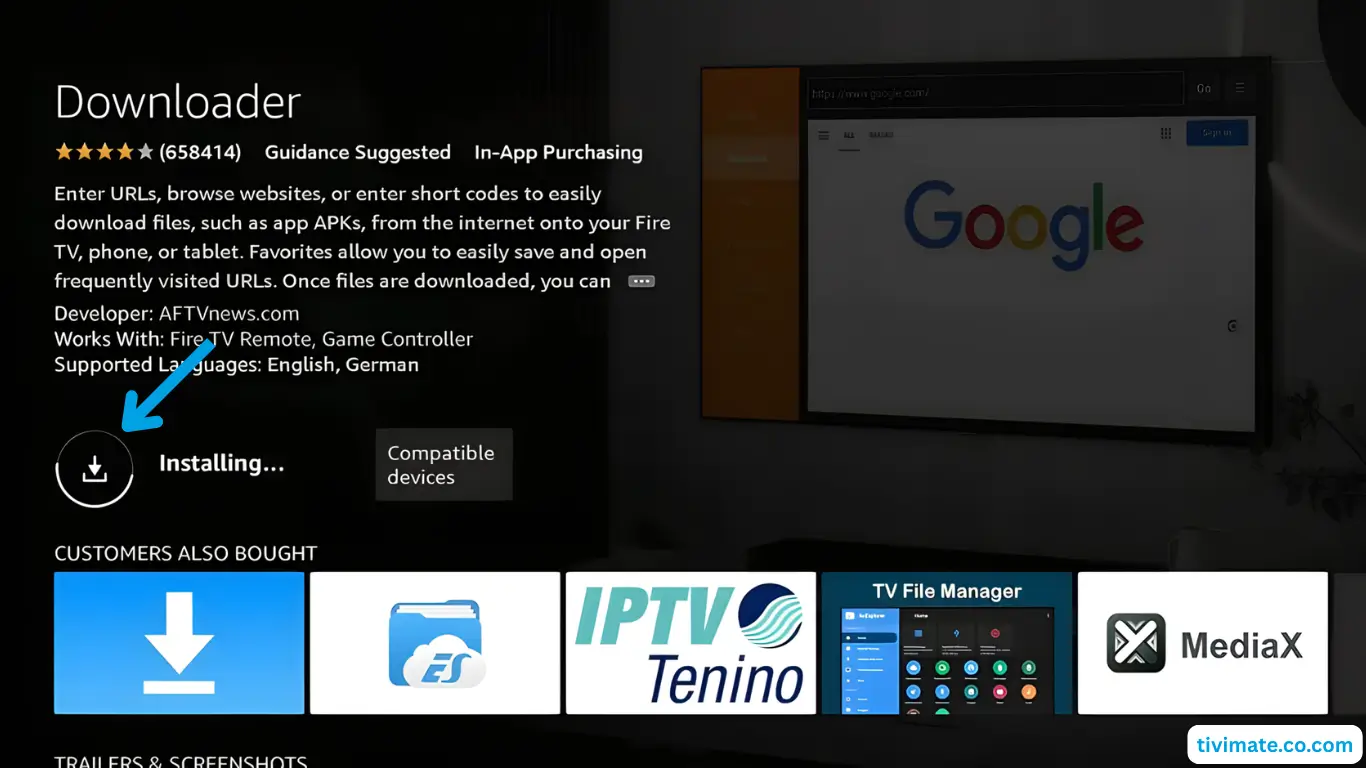
Select Download and wait a moment. The installation usually finishes in less than a minute.
Show the developer menu
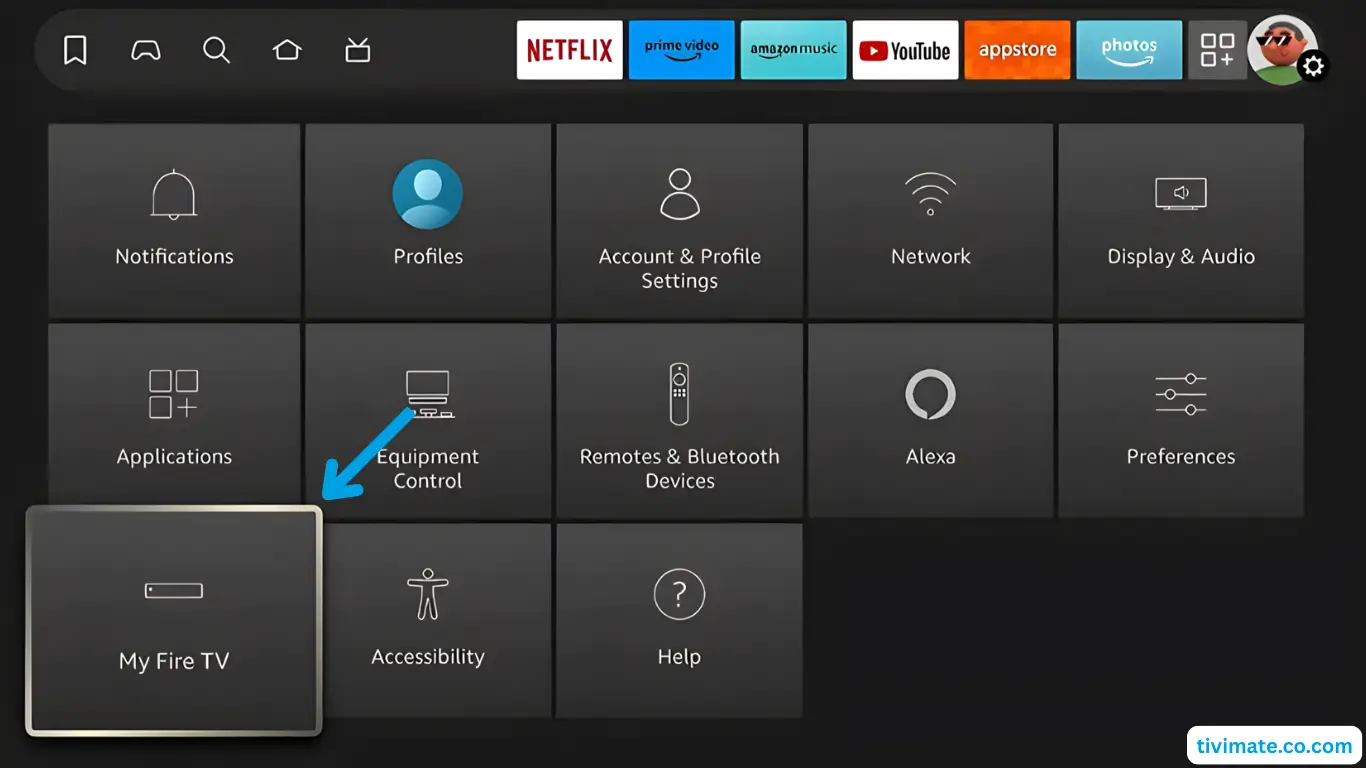
Open Settings > My Fire TV > About. Highlight the device name and press the center button of the remote seven times in a row until a message appears on screen.
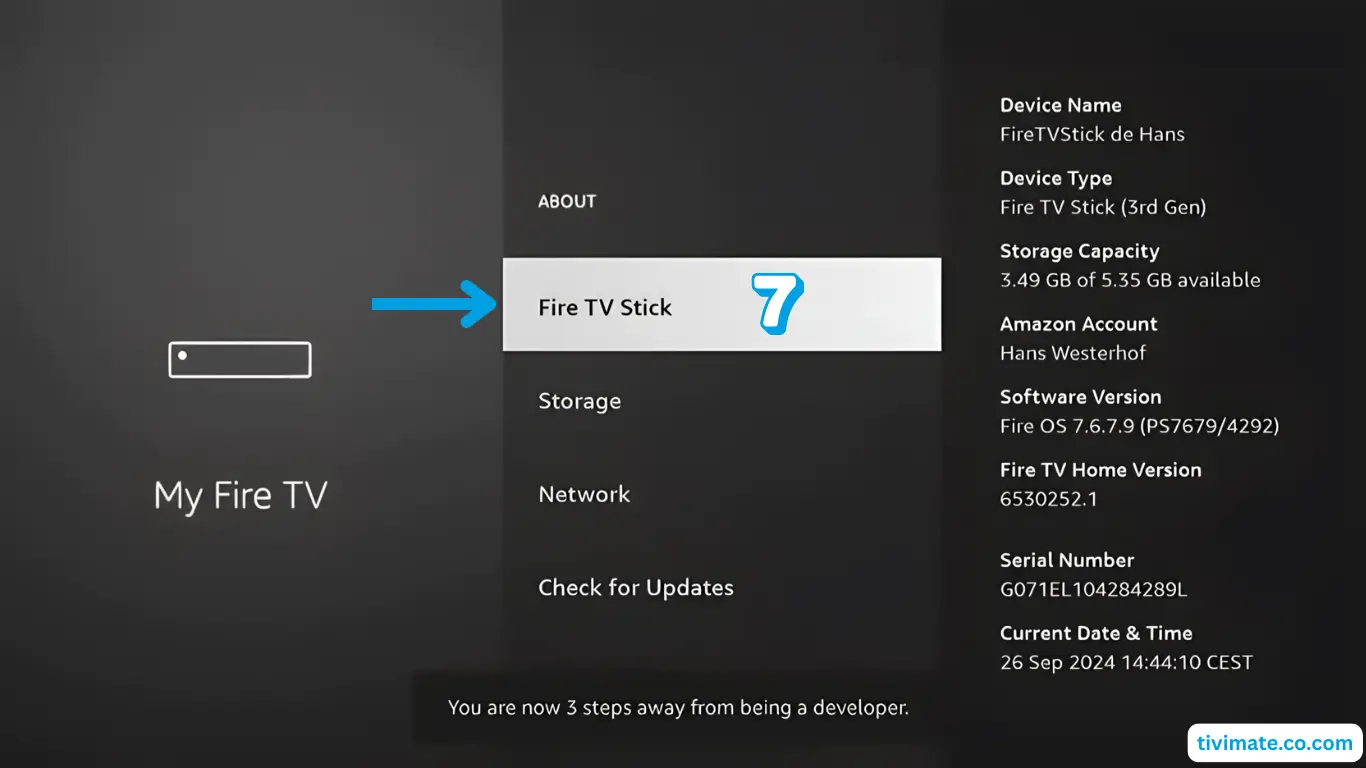
Allow installs from Downloader
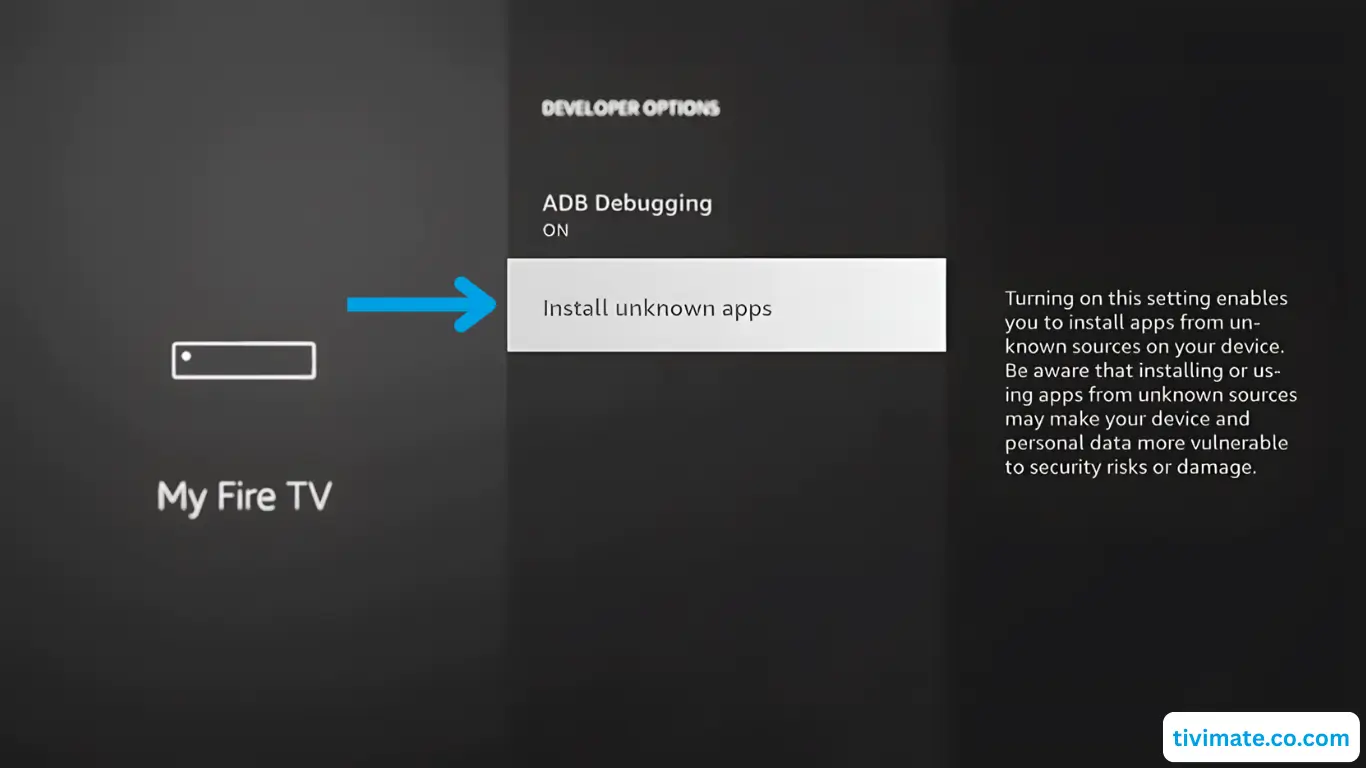
Open the new Developer options item, choose Install unknown apps and switch Downloader on.
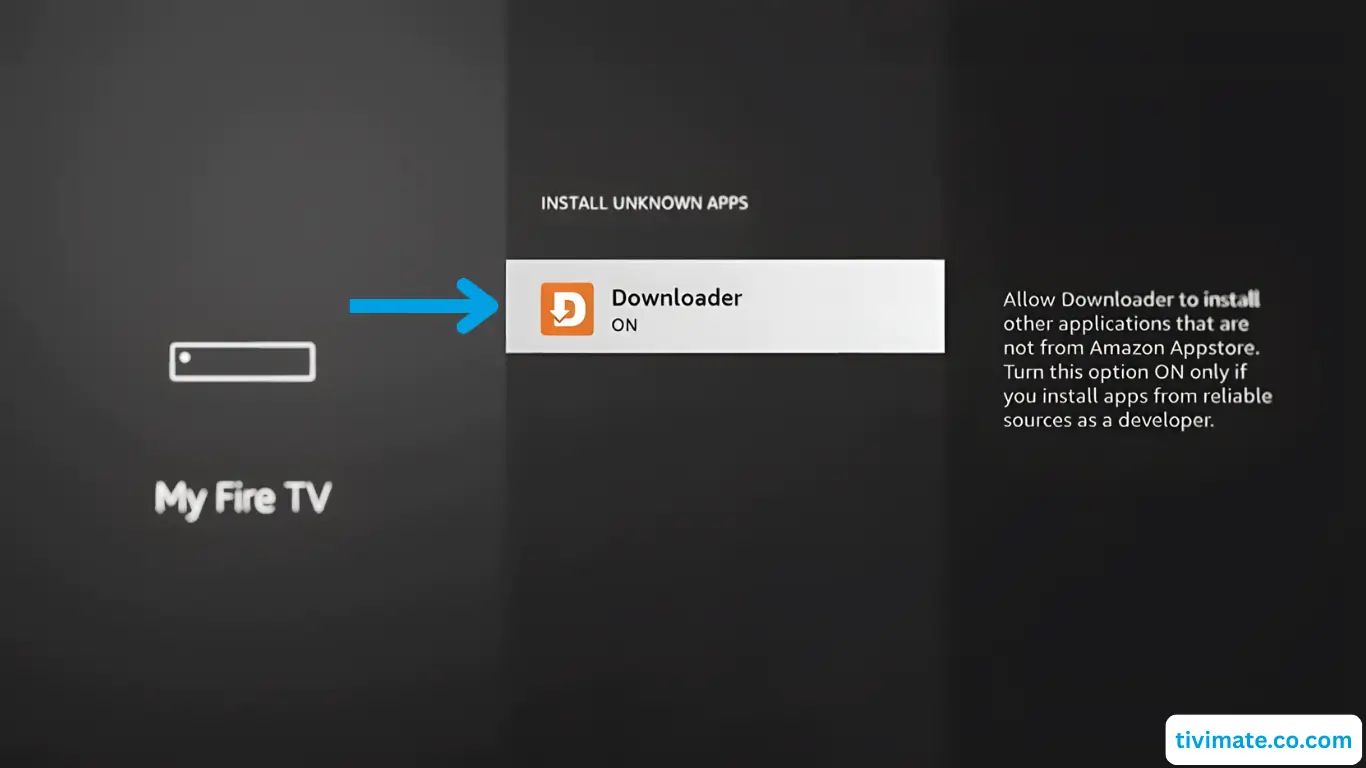
Allow file access
Launch Downloader. When it asks for access to the device's files, choose Allow.
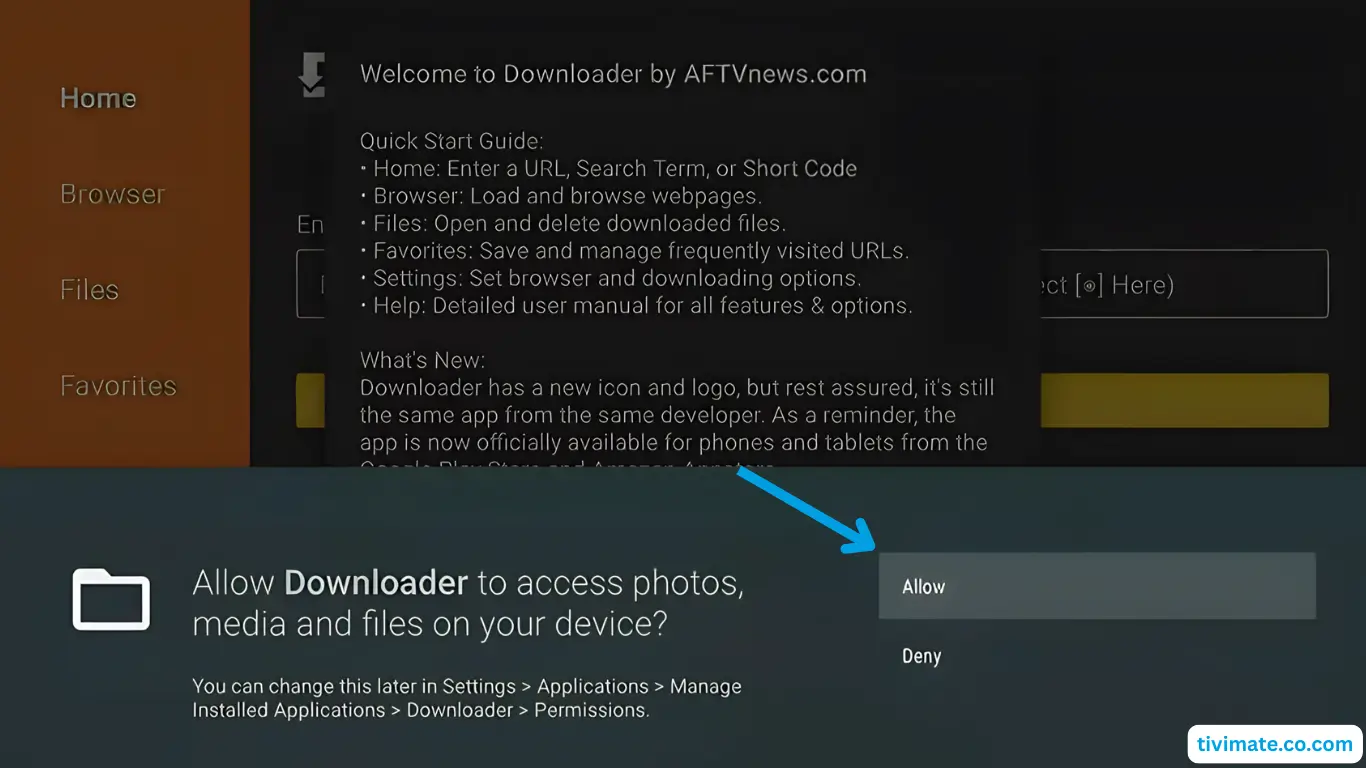
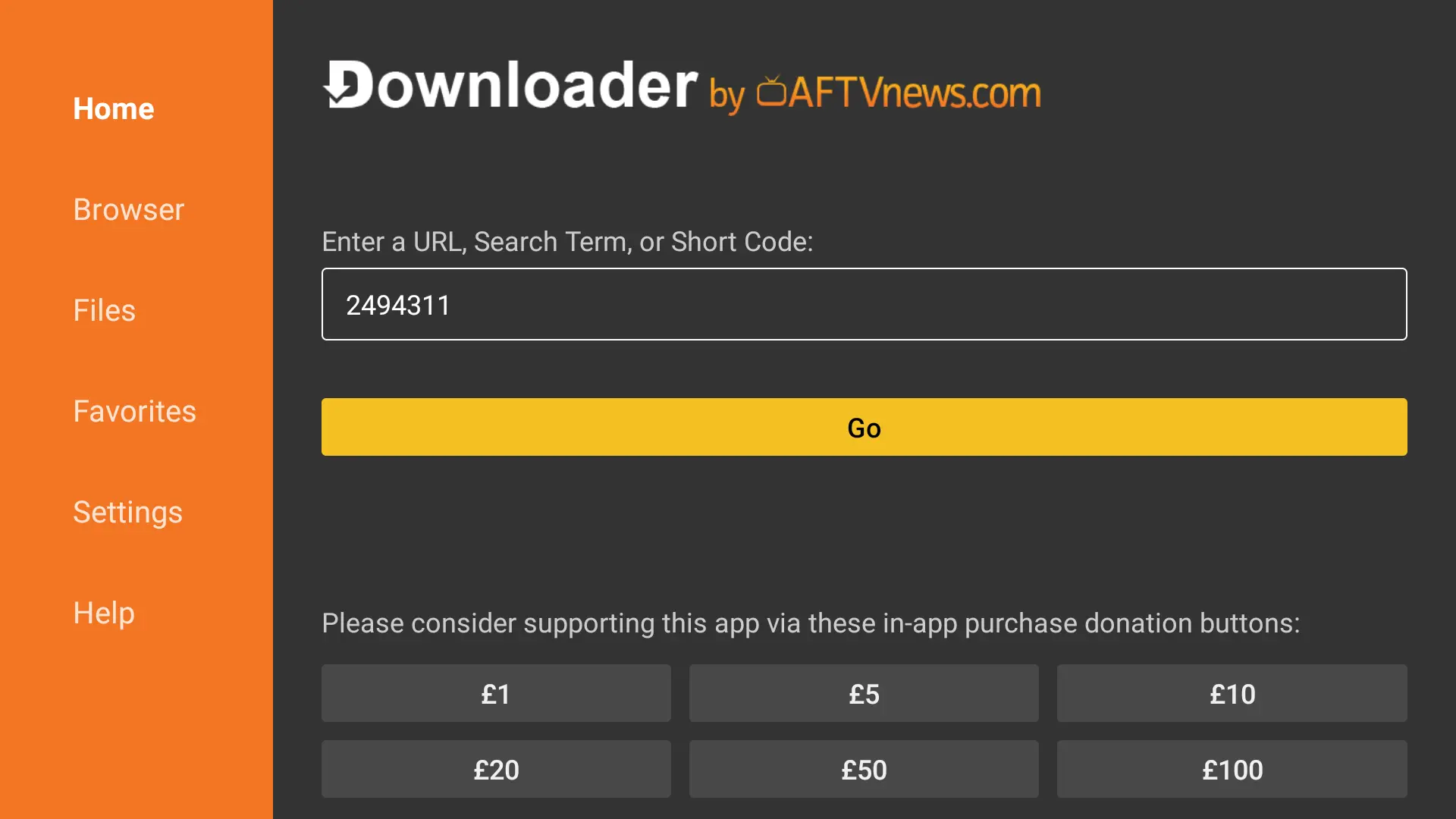
Enter the player code
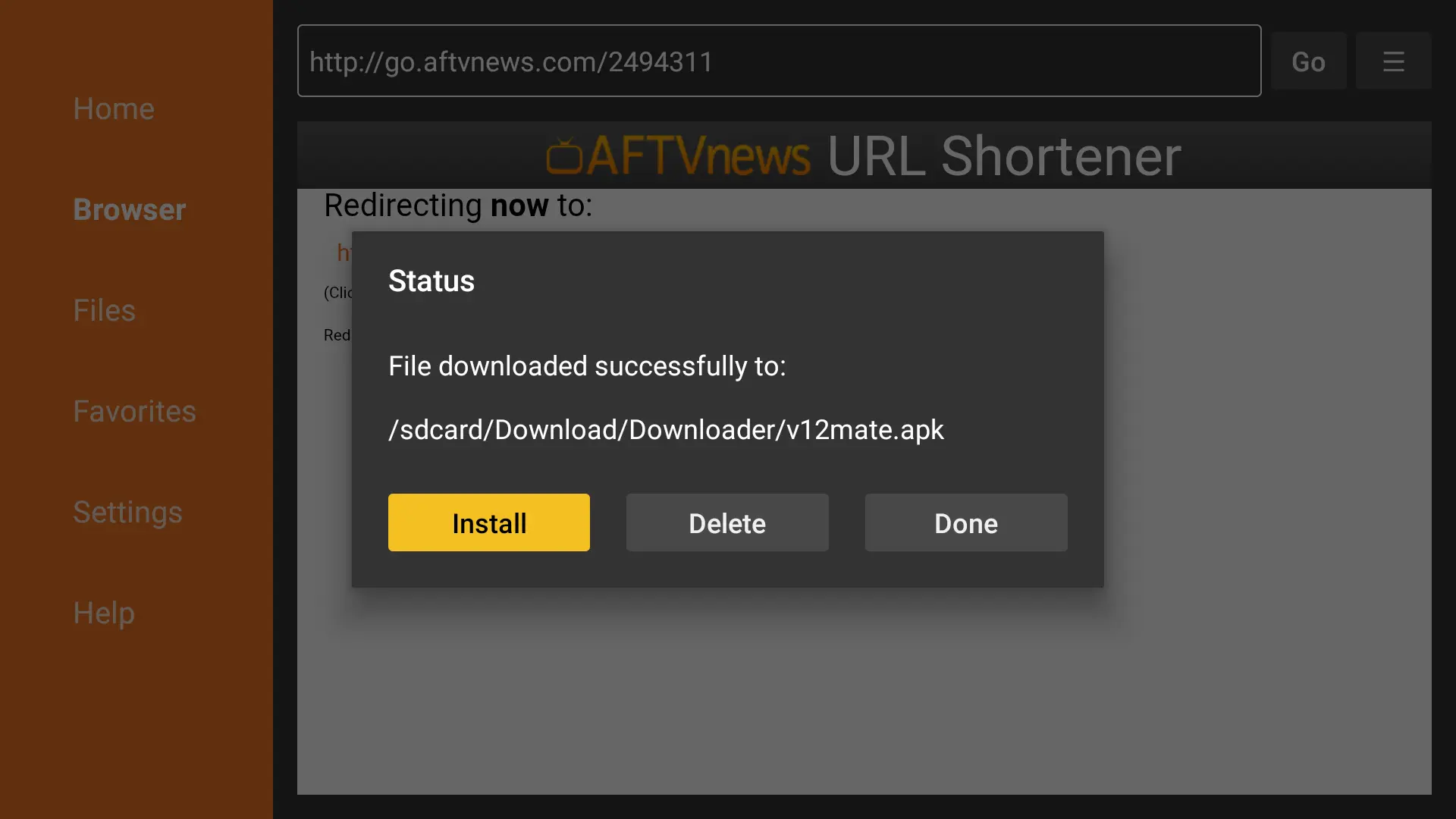
In the address bar type the TiviMate code 72816 or the IPTV Smarters Pro code 80911, select Go and then Install.
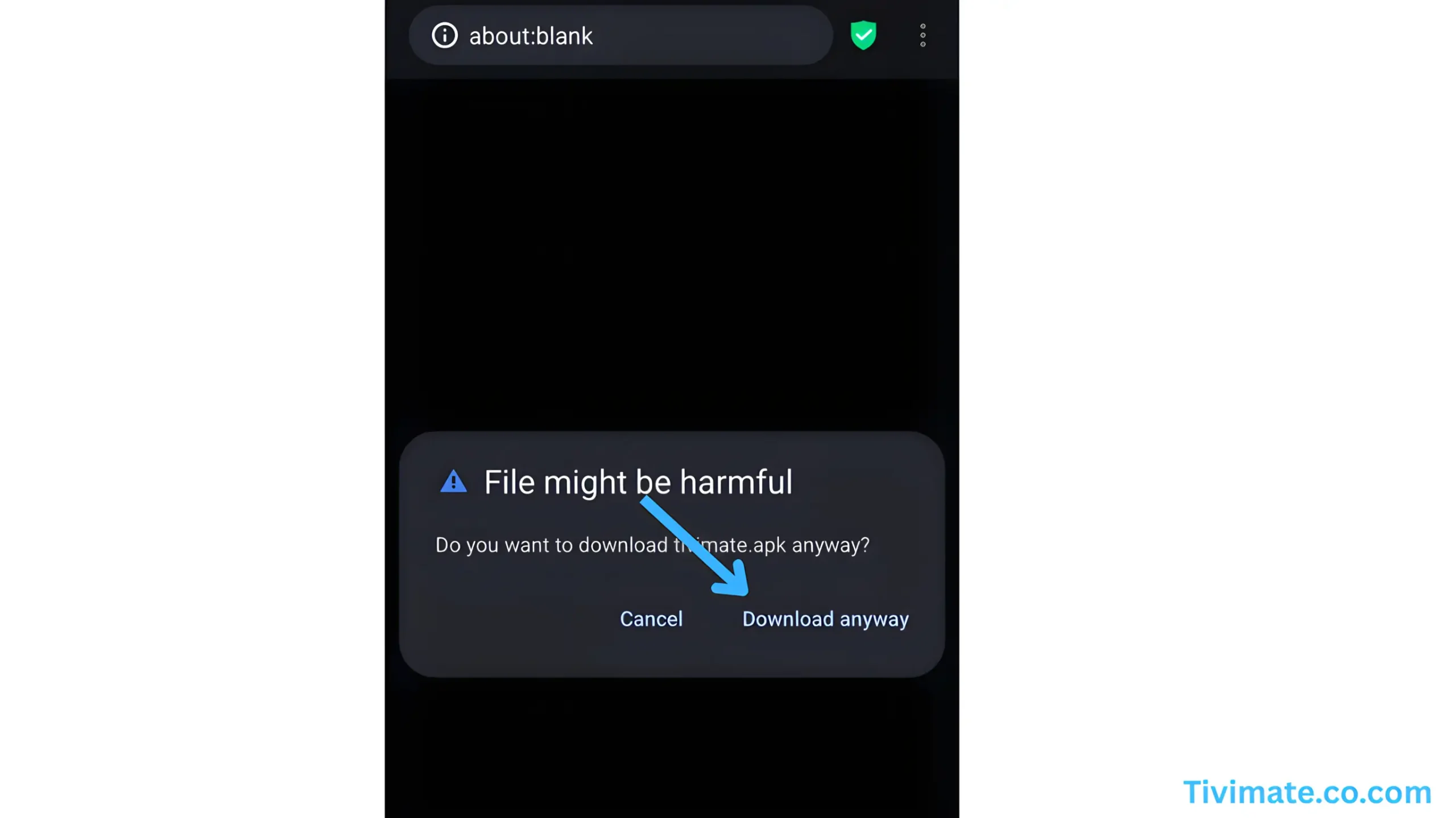
Log in
Open the player, choose Xtream Codes as the login method and enter the details from your order message:
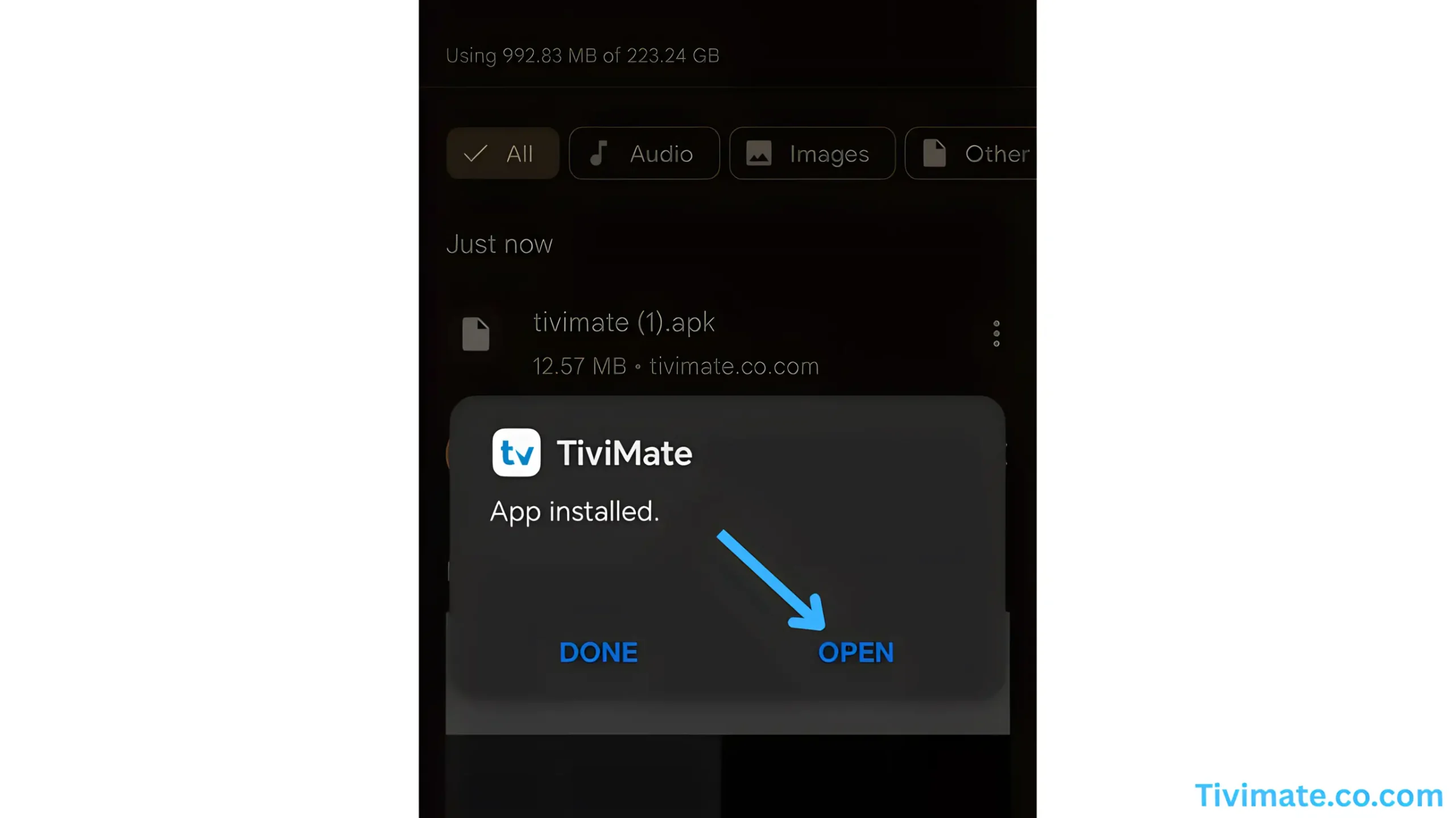
Apple TV, iPhone and iPad: a player from the App Store
Good choices: iMPlayer, Smarters Player Lite and GSE Smart IPTV.
Install a player
Search the App Store for iMPlayer or Smarters Player Lite. The same player is available for Apple TV and for iPhone and iPad.

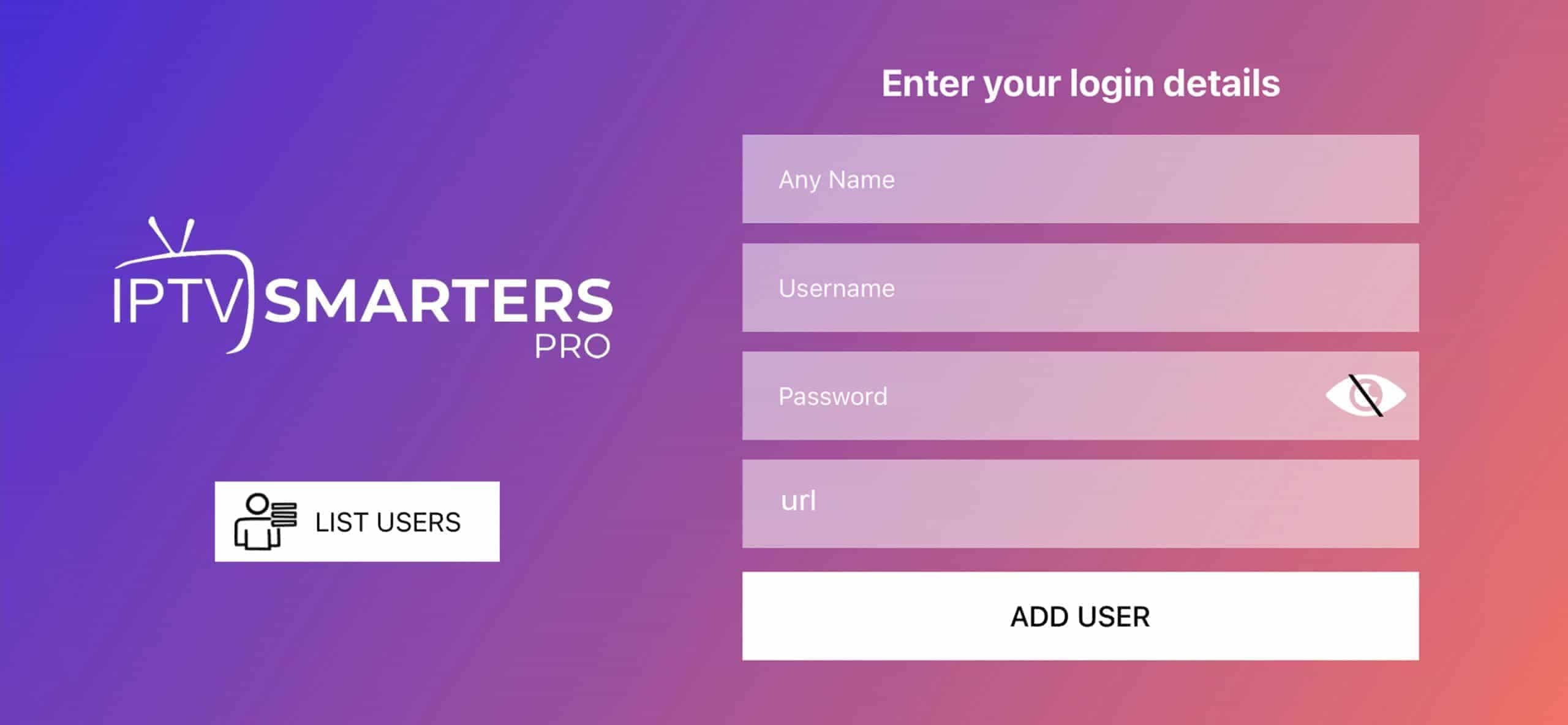
Add your details
Choose a new playlist and Xtream Codes as the login method. From your iPhone you can send the picture to the TV with AirPlay.
On a computer: Smarters Pro for Windows or VLC for everything
On Windows IPTV Smarters Pro from the Microsoft Store, on Mac and Linux for example VLC.
Download the app
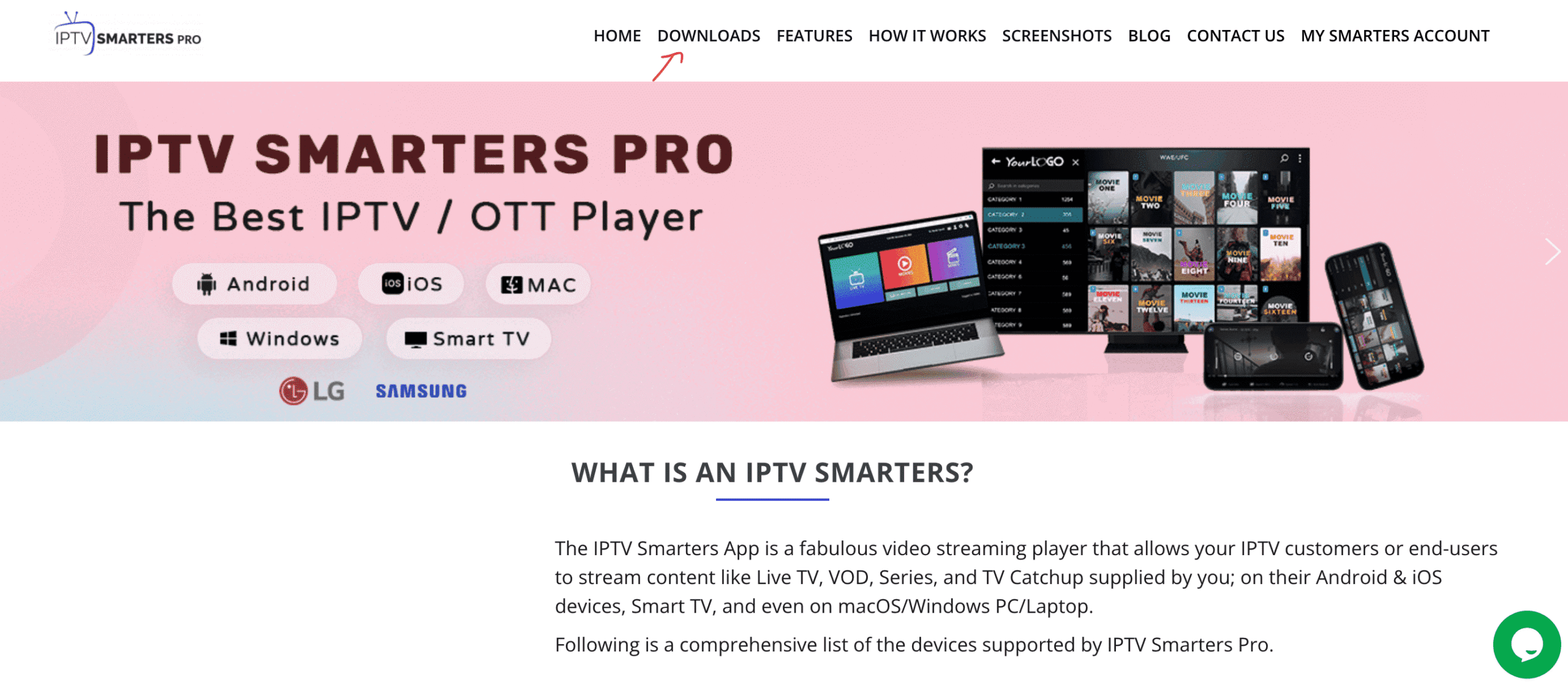
In the Microsoft Store, search for IPTV Smarters Pro and download it to your computer.
Choose the login method
On the first screen click Login with Xtream Codes API.
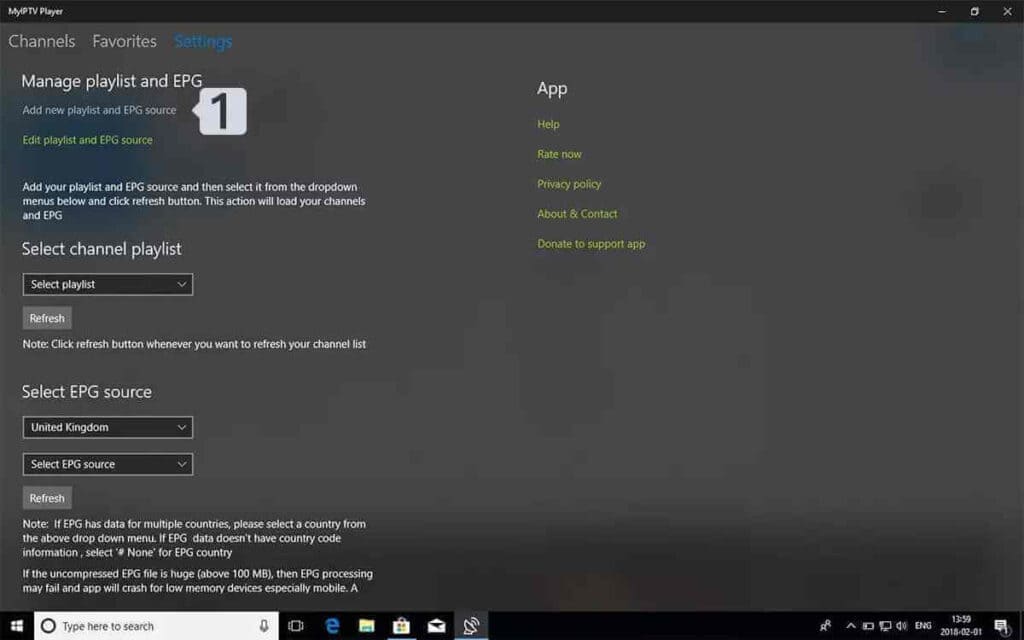
Enter your details
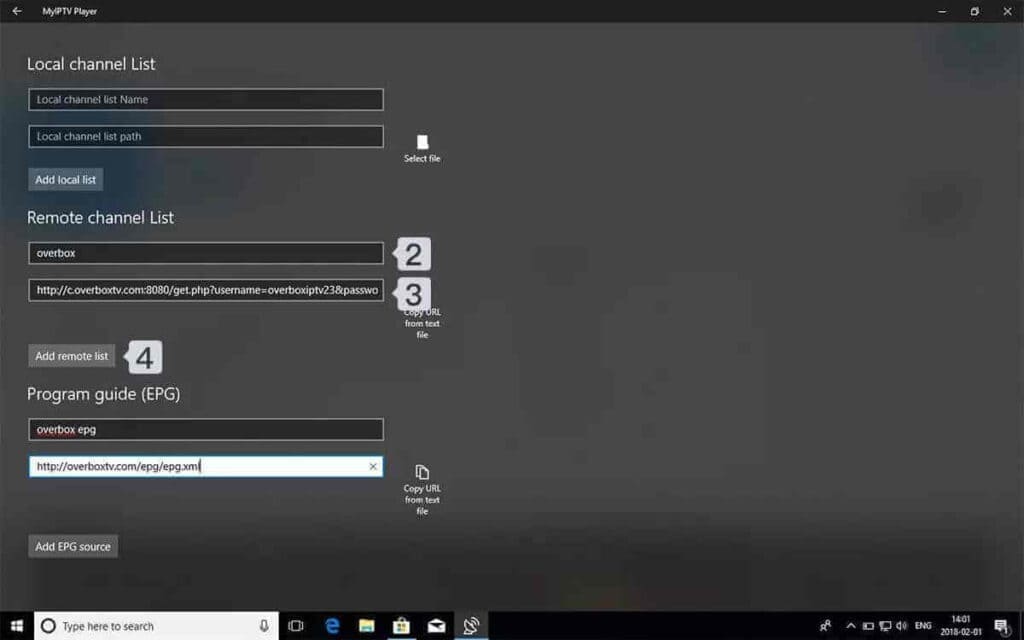
Give the profile any name, then copy the username, password and server URL from the message.
Done
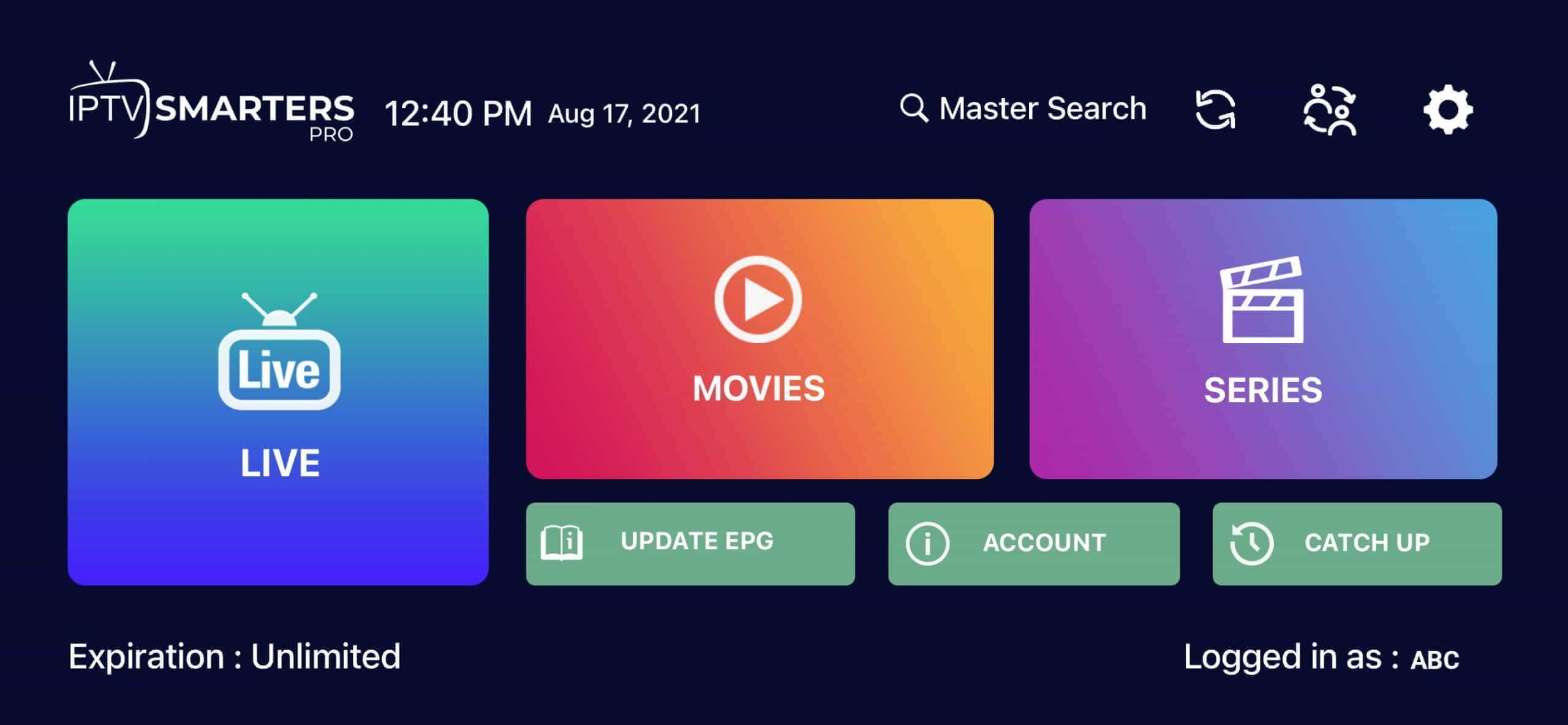
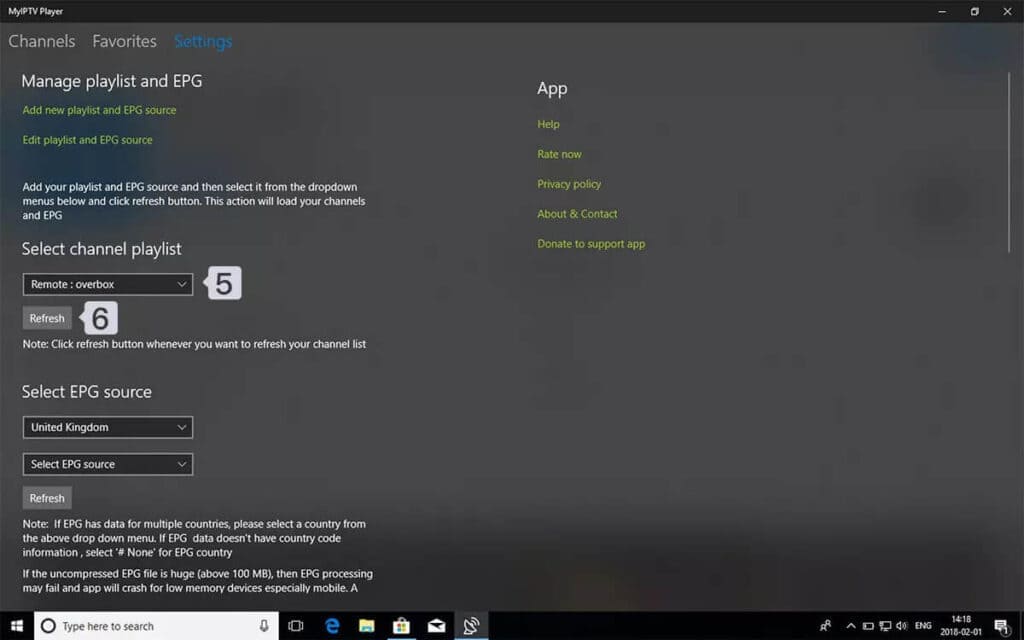
Select Add User. The app splits the content into tabs: live TV, movies, series and the TV guide.
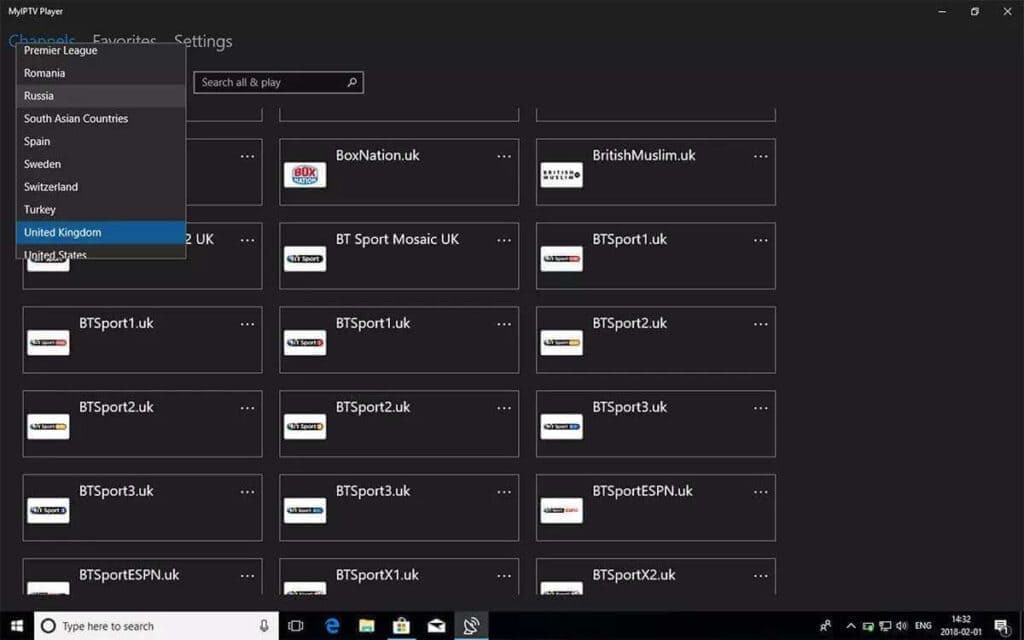
Portal boxes: Formuler, BuzzTV and MAG
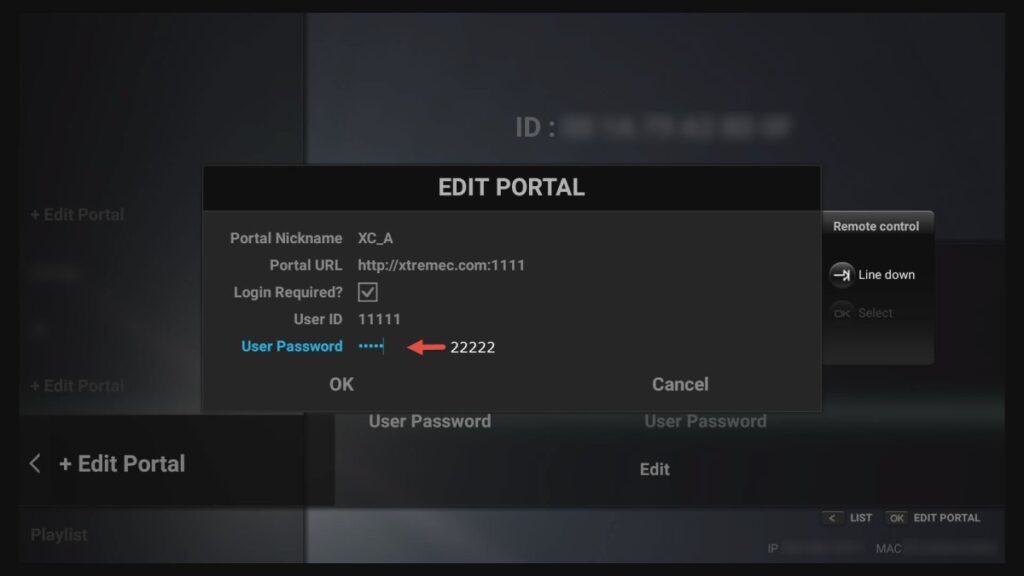
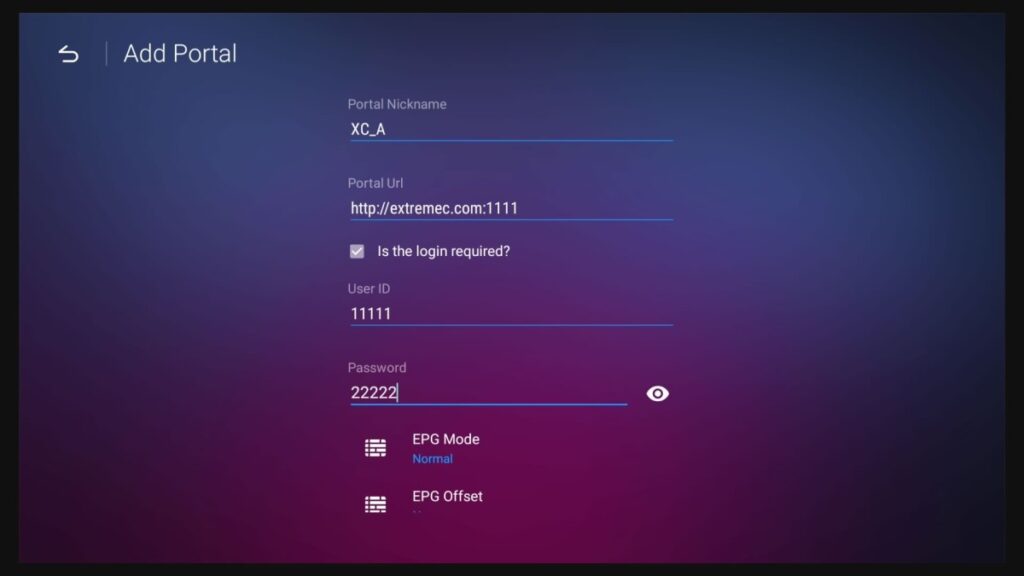
On these devices you log in with a portal URL, and the subscription is linked to the MAC address of the box.
Formuler (MyTVOnline)
Launch MyTVOnline and choose Menu > Connections > Add portal. Give the portal a name and enter the URL we send you. Tell us the MAC address of the box so we can link it to your subscription.
BuzzTV
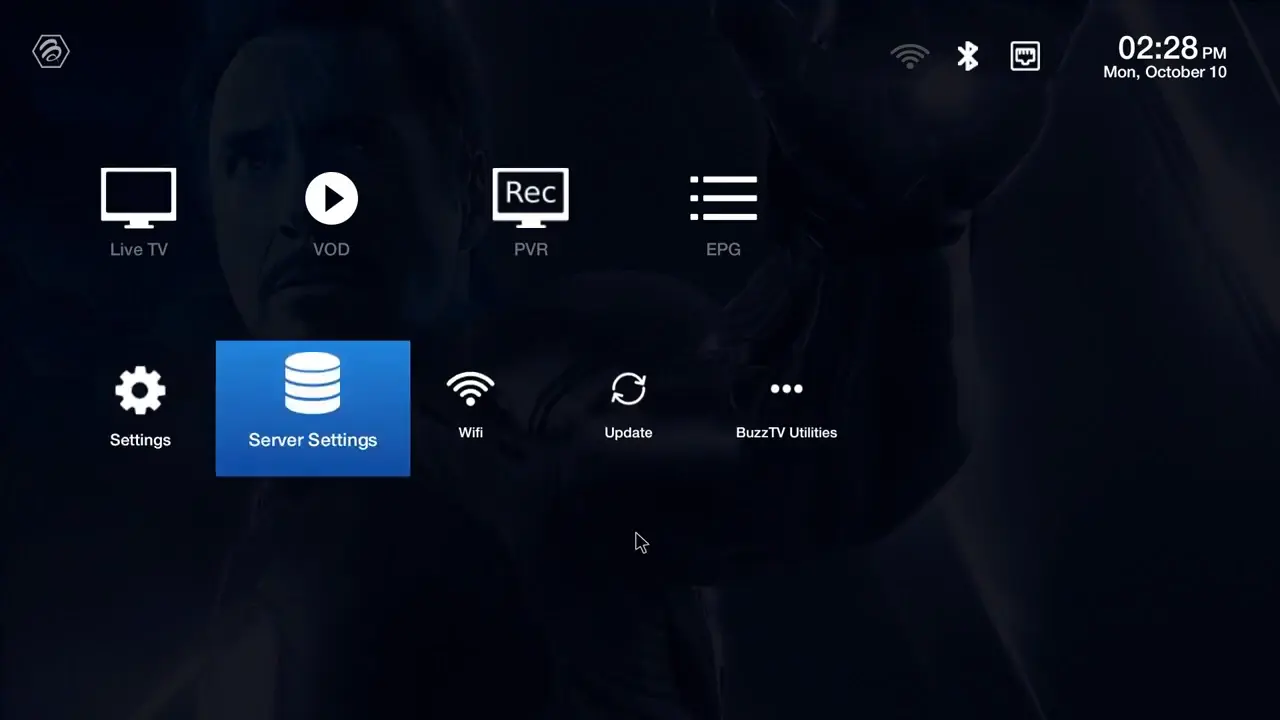
Go to Menu > Server settings, enter the URL in the Server 1 field and choose Connect.
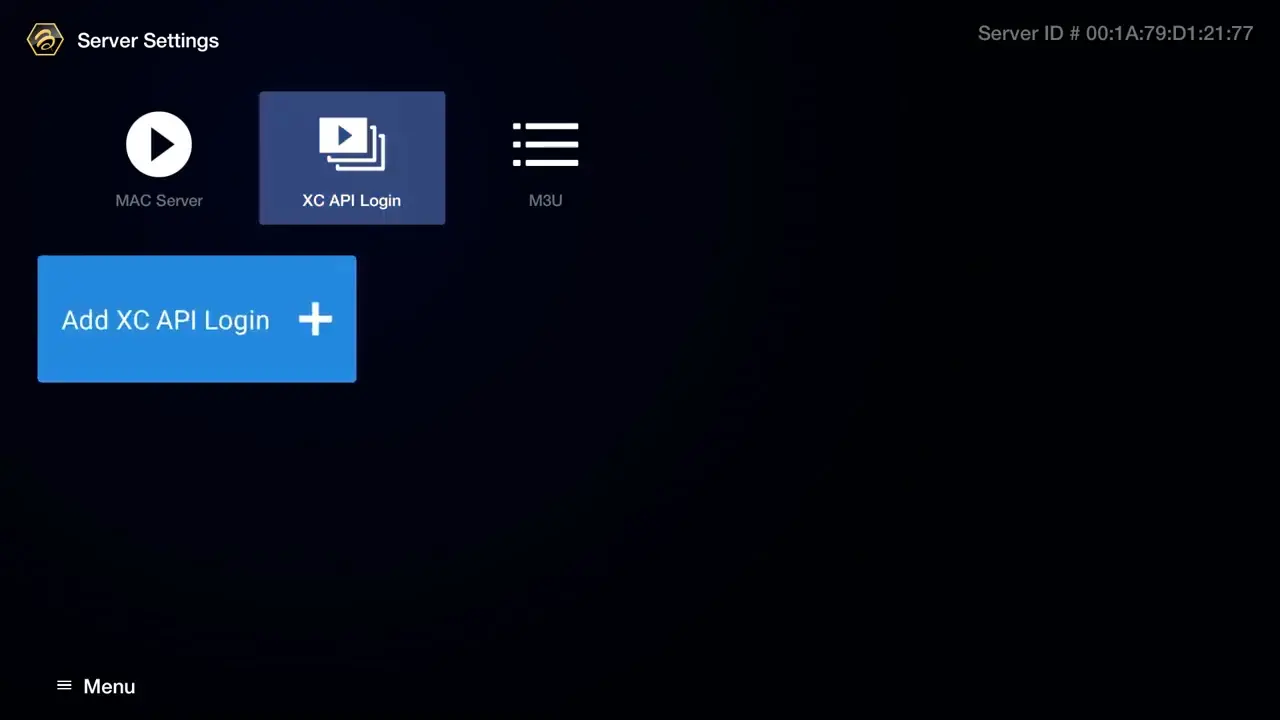
MAG and Dreamlink
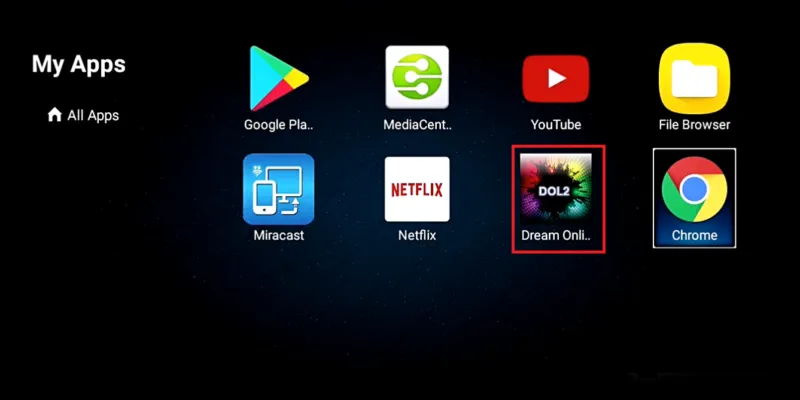
On a MAG box open Settings > Portals; on Dreamlink use the DOL2 app. Add the portal URL and restart the device.
FlixnetIPTV login with M3U or Xtream Codes, in ten screenshots
An M3U link is one long URL that contains the whole list; Xtream Codes are three short details that also bring the guide. On a TV with a remote, Xtream Codes is almost always easier. This is how the login goes, screen by screen:
First launch
Open the player you just installed.
Player terms
Accept the app's terms of use to continue.
Login method
Choose Xtream Codes API to get the guide and posters too.
Server URL
The server URL exactly as in the message, including the port number.
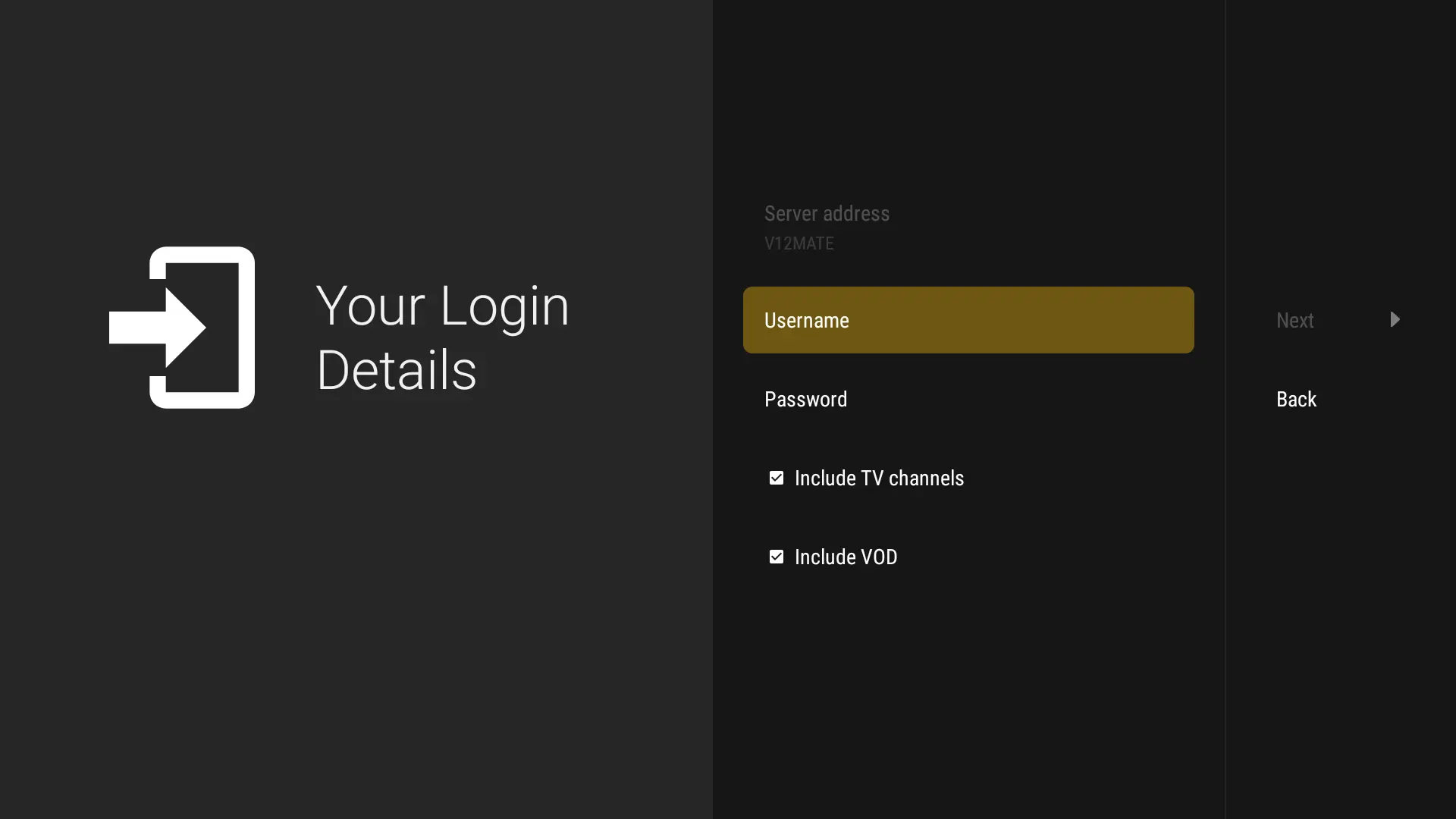
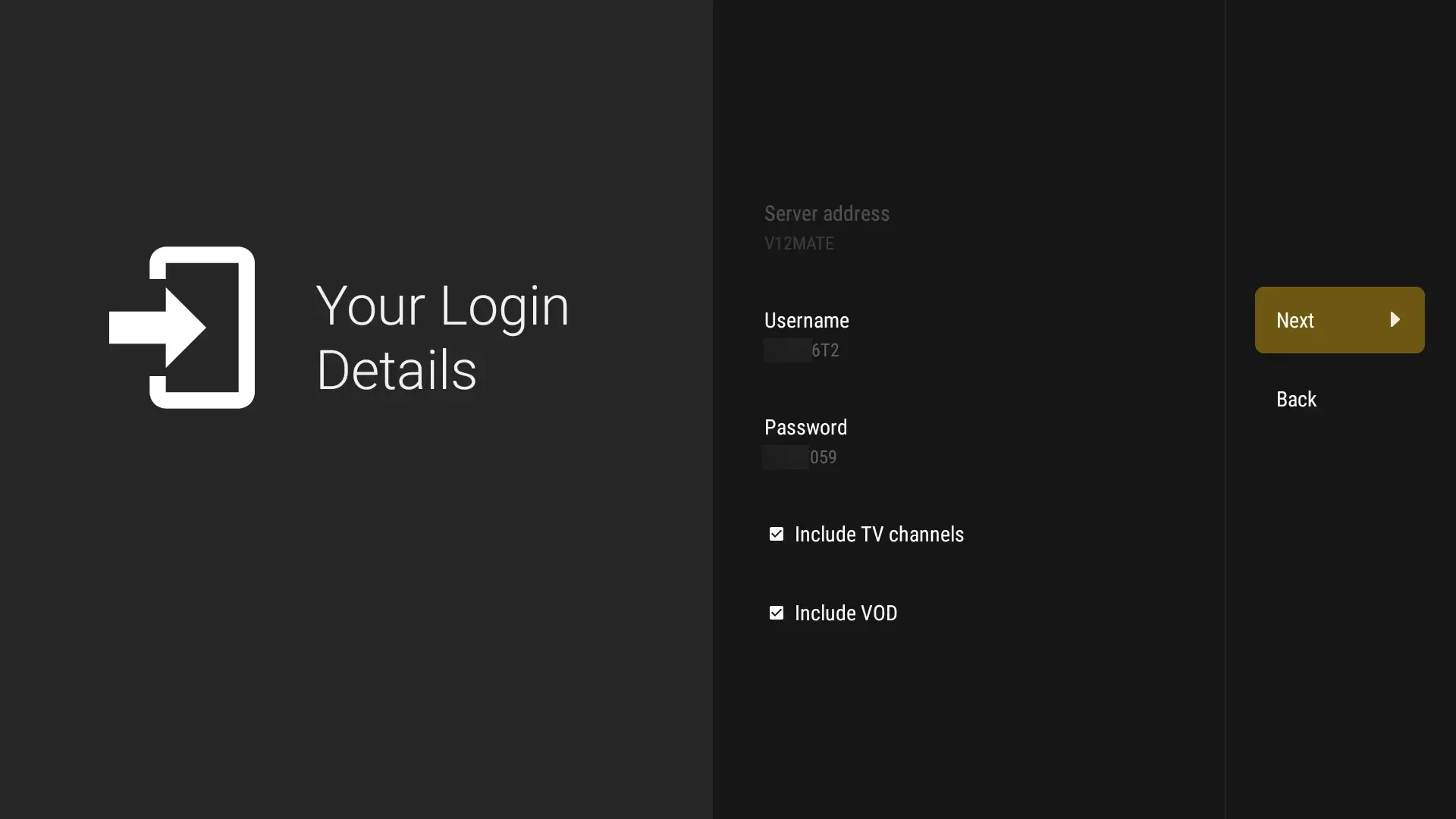
Username and password
Upper and lower case matter. Make sure there is no space at the end.
Checking
The player checks that your subscription is valid.
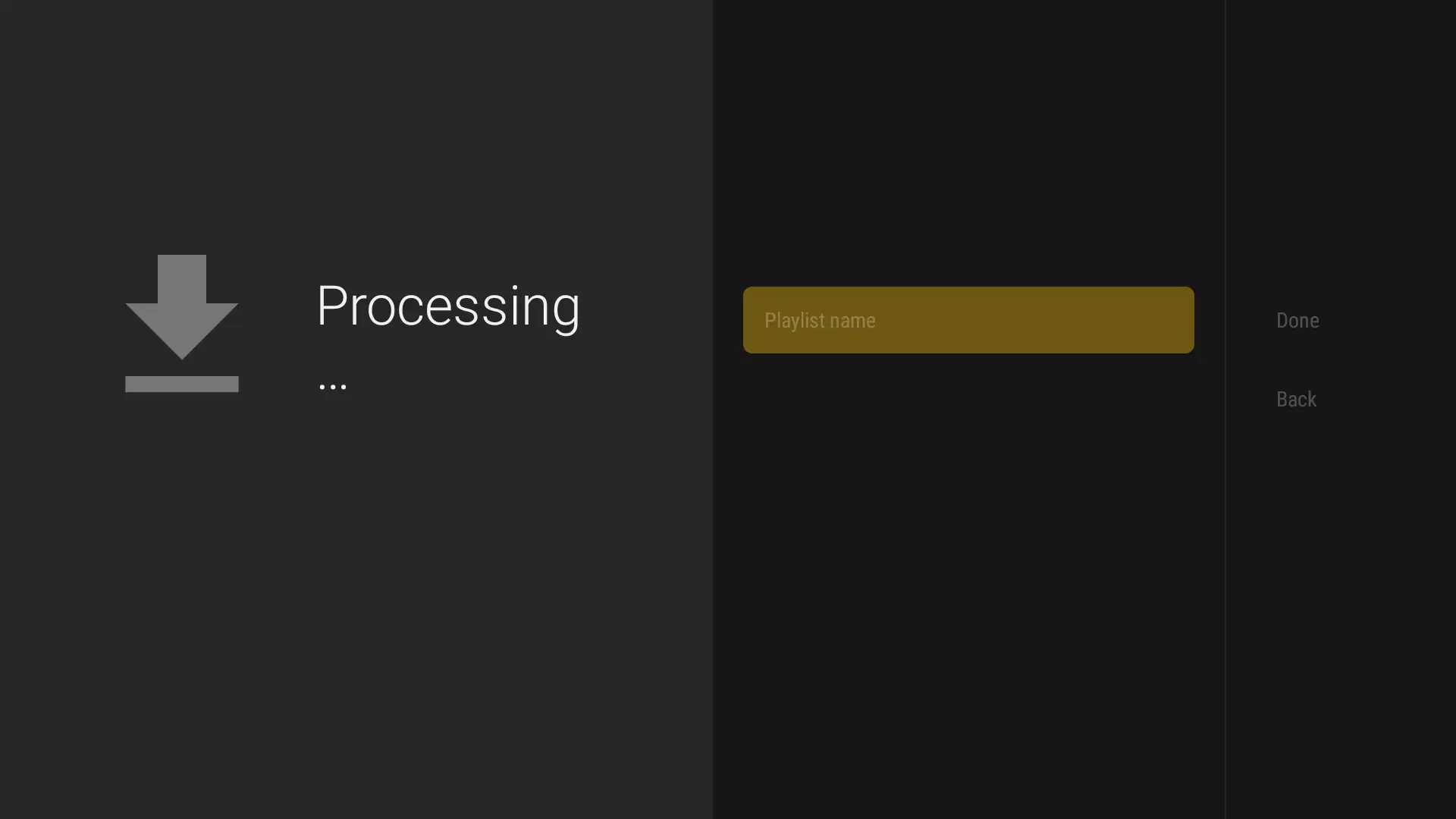
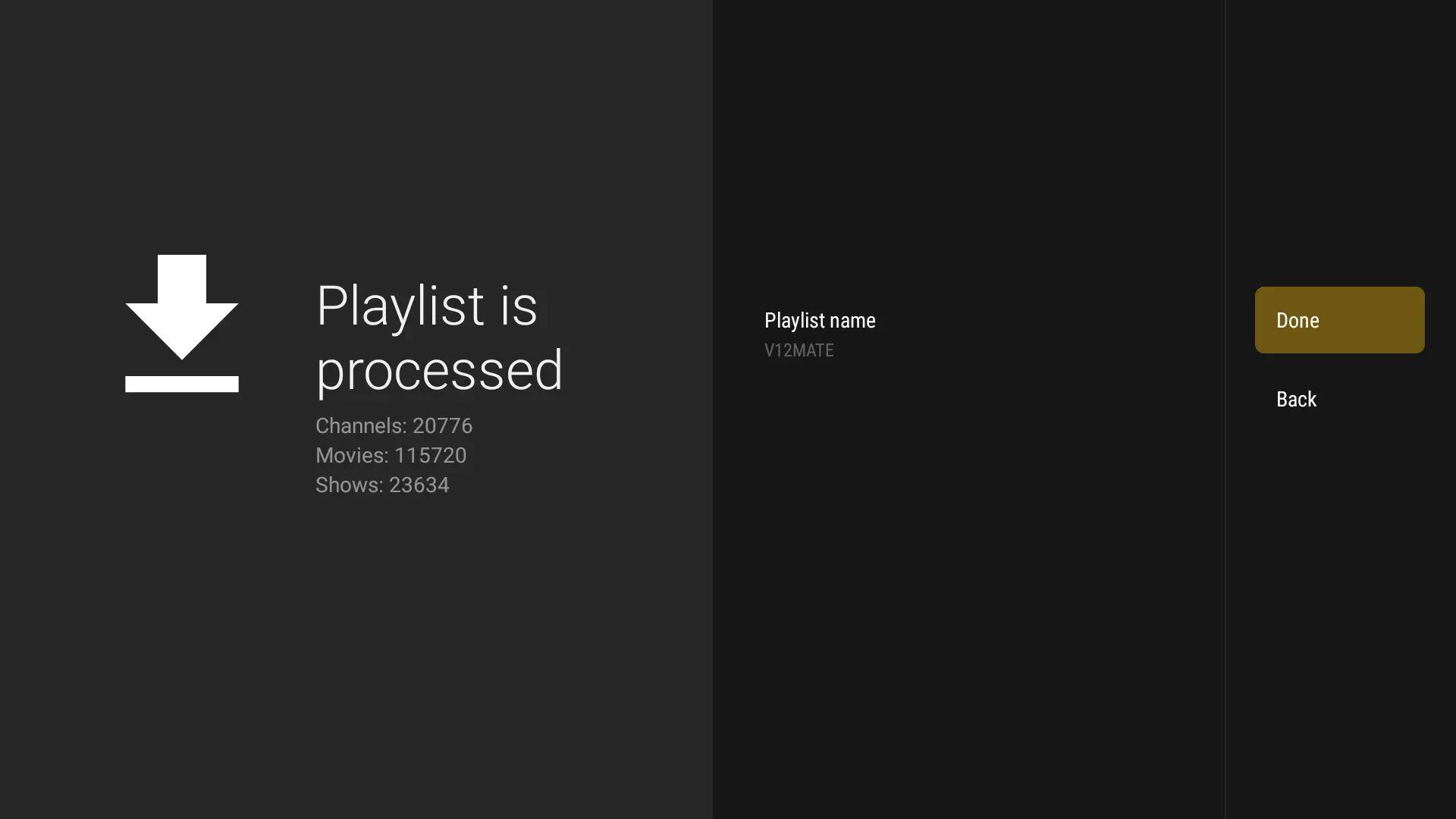
Loading
The first load of the list and guide takes a few moments.
Folders by country
Channels are sorted into folders; local US networks and national channels sit in their own folders at the top.
TV guide
See upcoming shows, and on many channels go back in time.
Quality versions
4K and Full HD versions are labeled. Pick one to suit your connection.
Best player for FlixnetIPTV on each device
Your login works in every player below. Choose one for your device and try another if needed.
| Your device | We recommend | Also good | Login |
|---|---|---|---|
| Samsung (Tizen) | IPTV Smarters Pro | IBO Player, SET IPTV, HotPlayer | Xtream Codes or MAC |
| LG (webOS) | IBO Player | SET IPTV, HotPlayer | MAC + M3U |
| Android TV / Chromecast | TiviMate | OTT Navigator, Televizo | Xtream Codes |
| Fire TV Stick | TiviMate | IPTV Smarters Pro | Xtream Codes |
| Apple TV, iPhone, iPad | iMPlayer | Smarters Player Lite, GSE | Xtream Codes |
| Windows / Mac | IPTV Smarters Pro | VLC | Xtream Codes / M3U |
| Formuler / MAG | Built-in portal | MyTVOnline | Portal + MAC |
TiviMate: the best TV guide
TiviMate shows channels and shows in a grid that is easy to move through with a remote. You can put favorite channels in your own list and switch channels quickly by number. It works on Fire TV and on every Android device.
IPTV Smarters Pro: the same look everywhere
Smarters splits the content into three parts: live TV, movies and series. Because it exists for TVs, phones and computers, the interface feels familiar on every device. That is why we often recommend it as a first player.
SET IPTV and IBO Player for older TVs
If the Samsung or LG store no longer offers the newest players, these two still work on many older models. You add the list on the player's website with the TV's MAC address, or we can do it for you.
Do I need a Chromecast or a box?
Not if your TV store offers a player and the picture is stable. A Chromecast with Google TV or another box helps when the TV is slow, has no player, or you want to connect the device to the router with a cable. A stick is also easy to take along to the cabin or on a trip.
If something goes wrong during setup
The four situations that happen most often, and how we solve them.
First check the server URL: it must include the beginning (http://) and the port number. Type the password again and make sure there is no space after it. If the problem stays, send a screenshot to support.
Guide data is downloaded separately and the first download can take a few minutes. Refresh the guide in the player settings and check that the time zone matches where you live (Eastern, Central, Mountain or Pacific).
Check that you typed the number in the address bar and not in the search field, and that Downloader is allowed to install apps. The code service is sometimes unavailable for a short time; try again in a few minutes.
Then your details are fine and the cause is the TV's connection or the player. Try a network cable or 5 GHz Wi-Fi and update the player. With an older TV, a streaming stick is often the fastest solution.
Want us to set it up for you?
Tell us your device and player on WhatsApp and attach a screenshot. We will suggest the next step or add the list to your smart TV remotely.